> For the complete documentation index, see [llms.txt](https://ova-themes.gitbook.io/tripgo/llms.txt). Markdown versions of documentation pages are available by appending `.md` to page URLs; this page is available as [Markdown](https://ova-themes.gitbook.io/tripgo/tripgo-menu/products/create-a-tour.md).

# Create a Tour

## 1: Create a Tour

### 1.1: Add General Fields

* Product Name
* Product Image
* Product Gallery
* [Product Categories](/tripgo/tripgo-menu/categories.md)
* [Tour Types](/tripgo/tripgo-menu/custom-taxonomies.md)
* Product Description
* Product Short Description
* Embed Video Link: Currently only support Youtube link.
* Destination: [Read here to know how to create Destination](/tripgo/tripgo-menu/destinations/create-destination.md)

<figure><img src="/files/7EUOWNbmju6LRPsvzlzl" alt=""><figcaption></figcaption></figure>

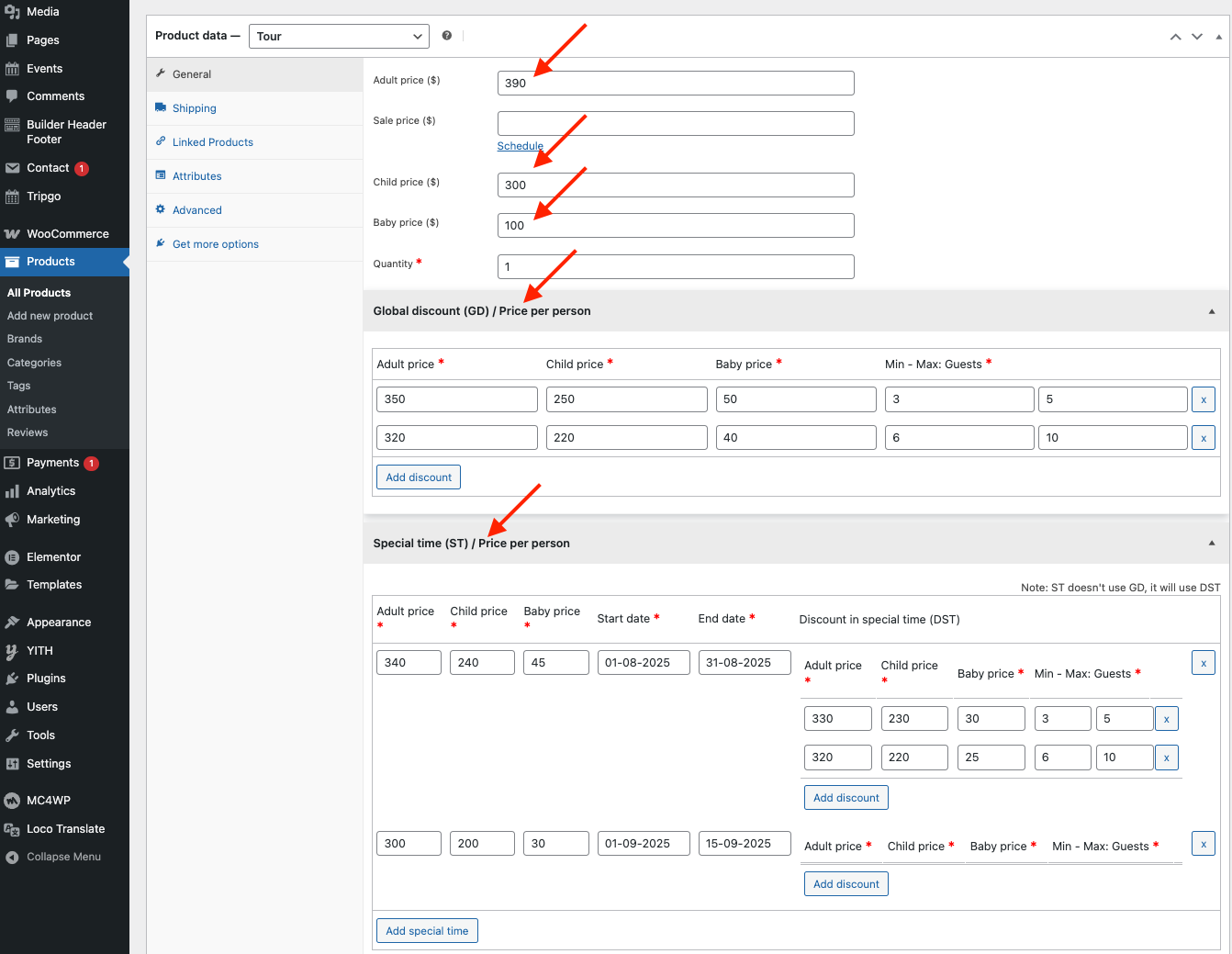
### 1.2: Add Global Price

**Config**

* **Regular Price**: This price is applicable for Adults
* **Sale Price**: The Sale price is applicable for Adults
* **Children Price**: The price is applicable for Children
* **Baby Price**: The price is applicable for babies

**Example**:

Total Amount = 2(Adults) \* $390 + 1 (Children) \* $300 = $1080

<div><figure><img src="/files/9oTtoOPeWd9dOYDjcpA1" alt=""><figcaption><p>Backend</p></figcaption></figure> <figure><img src="/files/8qtvCHttWv8s1FehpBVC" alt=""><figcaption><p>Frontend</p></figcaption></figure></div>

### 1.3: Add Quantity and Guest

* **Quantity**: The maximum number of tours that can be booked at once
* **Stock Quantity by Guests:** Check available dates based on the number of guests or stock quantity.

**a) Case 1**: **Check available dates based on the number of guests.**

* **Setup Scenario**:
  * Quantity: **1**
  * &#x20;Stock Quantity by Guests: **Checked**
  * Maximum adults: 4
  * Maximum children: 3
  * Maximum babies: 3
* **Tour availability calculation**:
  * Maximum adults per booking: 4 (Maximum adults)\* 1 (Quantity) = 4
  * Maximum children per booking: 3 (Maximum children)\* 1 (Quantity) = 3
  * Maximum babies per booking: 3 (Maximum babies)\* 1 (Quantity) = 3

**Note:** Each guest type has its own stock that is tracked independently.

**Suppose that:**

* The customer 1 books a tour at 05/08/2025 with 6 guests (2 adults, 2 children, 2 babies)

&#x20; → Remaining guest stock: Adults - 2 left , Children - 1 left and Babies - 1 left

* The customer 2 also books a tour at 05/08/2025
  * He can book the tour at 05/08/2025 if within remaining quota  ( For example: 2 Adults, 1 Child, 1 Baby → Booking allowed )
  * Booking is not allowed if he want to book more than what remains ( For example: 3 Adults, 0 Children, 1 Baby → Booking not allowed )

<div align="center"><figure><img src="/files/ondivZzoS8bRnwxbpSzD" alt=""><figcaption><p>Backend</p></figcaption></figure> <figure><img src="/files/7qG35GaDzJg8c2pvzAm7" alt=""><figcaption><p>Customer 1</p></figcaption></figure> <figure><img src="/files/GTkbWHRhiyHN661SaXvA" alt=""><figcaption><p>Customer 2</p></figcaption></figure> <figure><img src="/files/EZMa6CMZ3UK7wJHgogcf" alt=""><figcaption><p>Customer 3</p></figcaption></figure></div>

**b) Case 2: Check available dates based on stock quantity.**

* **Setup Scenario**:
  * Quantity: **1**
  * Stock Quantity by Guests: **Un Checked**
  * Maximum adults: 4
  * Maximum children: 3
  * Maximum babies: 3
* **Tour availability calculation formula**:&#x20;
  * Maximum adults per booking: 4(Maximum adults) = 4
  * Maximum children per booking: 3(Maximum children) = 3
  * Maximum babies per booking: 3(Maximum babies) = 3

**Note**:&#x20;

* In this case, the system only tracks overall tour stock (i.e., how many bookings are allowed), not individual guest types.
* Each booking reduces the total quantity, regardless of how many guests are included

**Suppose that:**&#x20;

* The customer 1 books a tour at 05/08/2025 with 6 guests (2 adults, 2 children 2 babies)

&#x20; → One booking has been used up

* The customer 2 tries to book a tour at the same date ( 05/08/2025 ): Booking is not allowed because the tour’s Quantity is set to 1 and it has already been booked by the customer 1

<div><figure><img src="/files/DJQNbA9c7qhm401qJVlZ" alt=""><figcaption></figcaption></figure> <figure><img src="/files/BRJCF2zUxKTNI3yLC6H6" alt=""><figcaption></figcaption></figure> <figure><img src="/files/jR6bGJvZJELtHrWMv9Xa" alt=""><figcaption></figcaption></figure></div>

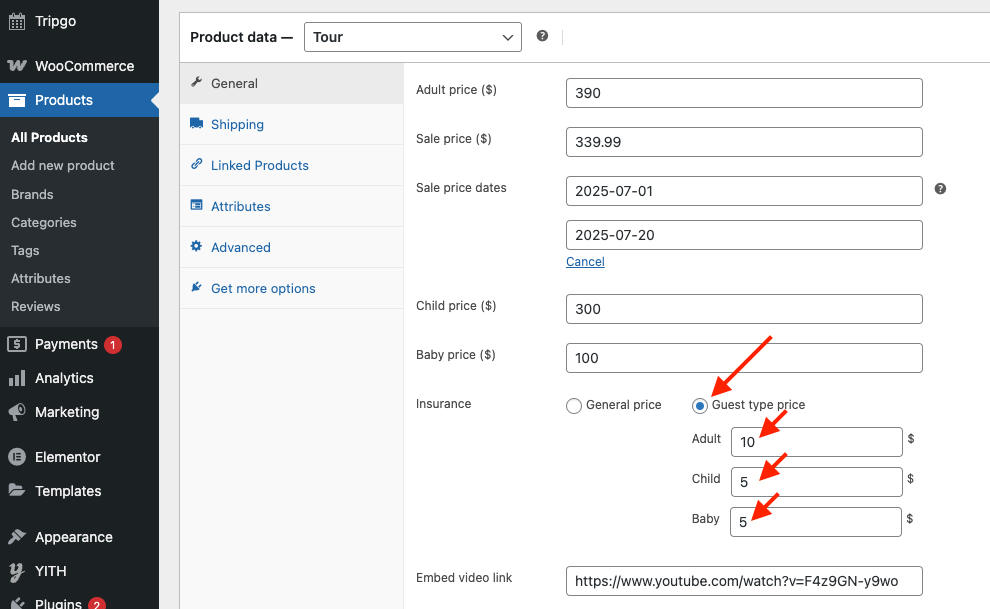
### 1.4: Add Insurance

Support 2 types: General Price and Guest type price

Read more [here](/tripgo/tripgo-menu/products/insurance.md)

**a) General Price**

**Insurance**: Choose "**General Price**" option

<div><figure><img src="/files/q4tLbgDf1HsuY2Dnl2Ry" alt=""><figcaption><p>Backend</p></figcaption></figure> <figure><img src="/files/WtyqT1lZIbgwV7KU7Aqx" alt=""><figcaption><p>Frontend</p></figcaption></figure></div>

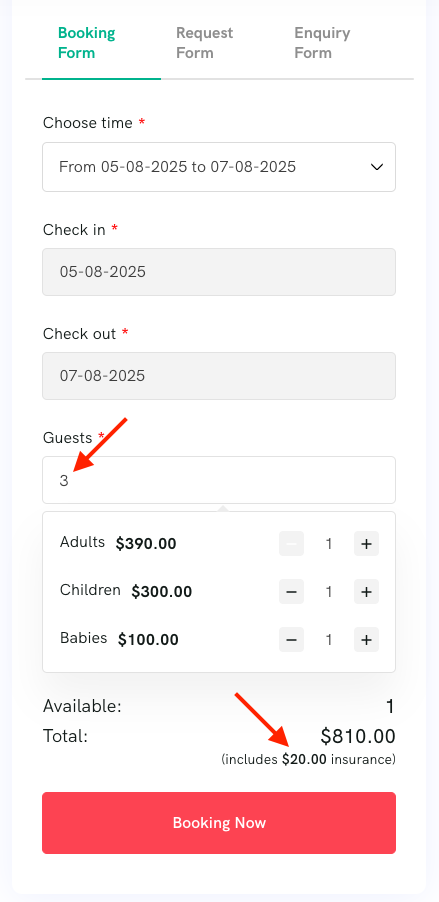
**b) Guest type price**

**Insurance:** Choose **"Guest type price"** option

<div><figure><img src="/files/b3cUONPpvHFuwhZgP5OH" alt=""><figcaption><p>Backend</p></figcaption></figure> <figure><img src="/files/2U07enRK5HSgwTztAGZL" alt=""><figcaption><p>Frontend</p></figcaption></figure></div>

### 1.5: Add Deposit

Support partial payment in two types: Percent and Fixed amount.

Read more [here](/tripgo/tripgo-menu/products/deposit.md)

**a) Percent**

**Deposit type:** Choose "**a percentage amount of payment**" option

<div><figure><img src="/files/JKssa2ObuxfHM7n0XZLu" alt=""><figcaption><p>Backend</p></figcaption></figure> <figure><img src="/files/Kdv4mvz8na2Tn3ckXp6Y" alt=""><figcaption></figcaption></figure></div>

**b) Fixed**

**Deposit type:** Choose "**a fixed amount of payment**" option.

<div><figure><img src="/files/4qW9w1m9aFRK0Eq7210g" alt=""><figcaption></figcaption></figure> <figure><img src="/files/449QMoeAlwLAlZnS0Rh2" alt=""><figcaption></figcaption></figure></div>

### 1.6: Add Tour with Fixed Dates

* **Time slots**: No
* **Days**: Add the number of days for the tour.
* **Fixed Dates:** Setup check-in and check-out date.

<div><figure><img src="/files/44TxktoreoehCGwpkaCg" alt=""><figcaption><p>Backend</p></figcaption></figure> <figure><img src="/files/Dg08SiIExa5yyrfKBNmP" alt=""><figcaption><p>Frontend</p></figcaption></figure></div>

### 1.7: Add Tour with Duration

* Time Slots: Yes
* **Hours**: Enter the number of hours for the tour
* **Schedule**: The Price in Duration will take priority over the global price.

**Case 1**: T**he Price Is Calculated Based on the Number of Guests in each Type**

Total Amount = 3 (Adults) \* $10 + 1 (Children) \* $7 + 1 (Baby) \* $7 = $44

<div><figure><img src="/files/uihylc0NfMAxssoZG3I8" alt=""><figcaption><p>Frontend</p></figcaption></figure> <figure><img src="/files/9Kg4u9unbatpjcirsJb5" alt=""><figcaption><p>Backend</p></figcaption></figure></div>

**Case 2**: **A Fixed Total Price for each Guest Type**

In this case, for each **guest type** (like adults, children, or babies), the total price is a **fixed amount**, **no matter how many guests** of that type are included in the booking.

Example: A customer books a tour with 2 Adults, 1 children and 1 baby at 07:00 on Monday

{% hint style="info" %}
→ Price of 2 Adults = $10 ( total price of adults is $10 , **no matter how many adults** are included in the booking )

Total Amount = Fixed tour price for Adults + Fixed tour price for Children + Fixed tour price for Babies&#x20;

&#x20;                         \= $10 + $7+ $7 = $24
{% endhint %}

<div><figure><img src="/files/mzjWmAYVKsbFIHJO5xC2" alt=""><figcaption></figcaption></figure> <figure><img src="/files/atbwIIkiAzbwvkQSHJeW" alt=""><figcaption></figcaption></figure></div>

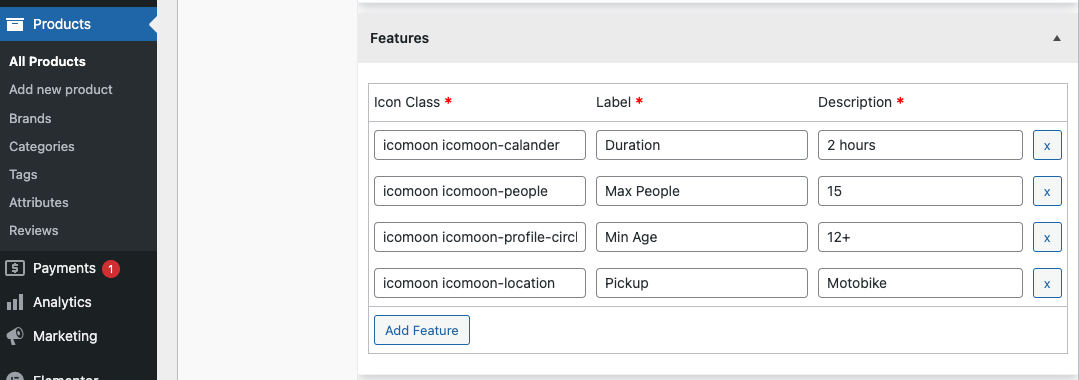
### 1.8: Add **Features**

Icons: you can find icon class [here](/tripgo/other-settings/icons.md)

<div><figure><img src="/files/oEcJgpNUgRq72gKs3R74" alt=""><figcaption><p>Backend</p></figcaption></figure> <figure><img src="/files/L1uE4cUKQwVBxQSW8LdB" alt=""><figcaption><p>Frontend: Product Detail</p></figcaption></figure></div>

### 1.9: Add Global Discount

* Price in Global Discount will override both the global price and the duration-based price.
* The system will apply a discount depending on the total number of guests (Adults + Children + Babies).
* If you want to apply a discount depending on the number of Adults only or Adults + Children, you only need to customize the code using following hook:

```php
add_filter( 'ovabrw_get_price_by_global_discount', function( $gd_prices, $product_id, $numberof_adults, $numberof_children, $numberof_babies ) {
    return $gd_prices;
}, 10, 5 );
```

<div><figure><img src="/files/ymGA3zbCPGWROoW6T5yX" alt=""><figcaption><p>Backend</p></figcaption></figure> <figure><img src="/files/5NZnDLHDw3phREeMWsFx" alt=""><figcaption><p>Frontend - Booking Form</p></figcaption></figure></div>

### 1.10: Add Price with Special Time

* Price in special time will override global price, duration-based price and global price.
* The system will apply a discount depending on the total number of guests (Adults + Children + Babies).
* If you want to apply a discount depending on the number of Adults only or Adults + Children, you only need to customize the code using following hook:

```php
add_filter( 'ovabrw_get_price_by_special_time', function( $special_time_prices, $product_id, $checkin_date, $numberof_adults, $numberof_children, $numberof_babies ) {
    return $special_time_prices;
}, 10, 6 );
```

<div><figure><img src="/files/kVOzo5UWcPmG53lfNZ8s" alt=""><figcaption><p>Backend</p></figcaption></figure> <figure><img src="/files/hQrUl9ae6EGsgasH0R3N" alt=""><figcaption><p>2 Guests</p></figcaption></figure> <figure><img src="/files/p4mnDpNmxpawi8Pn845h" alt=""><figcaption></figcaption></figure></div>

### 1.11: Add Resources

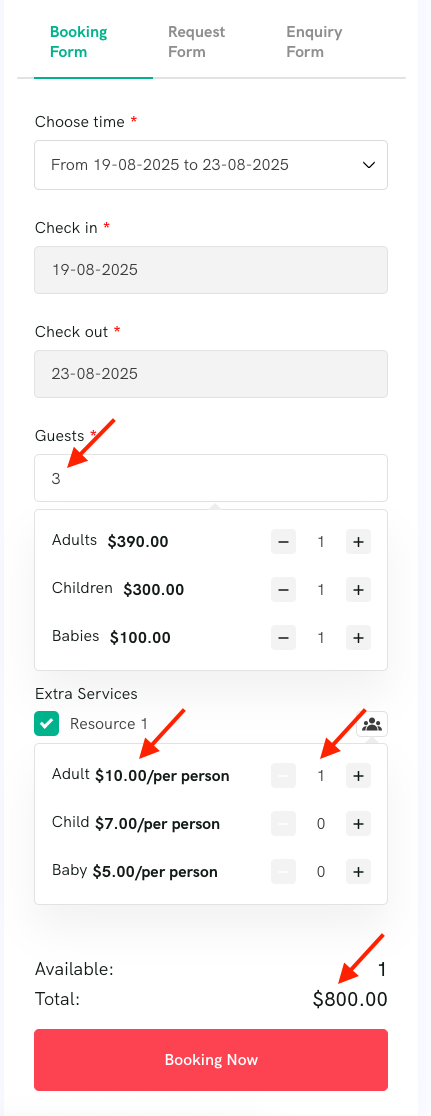
**Example 1**: T**he Resource Price Is Calculated Based on the Number of Guests in each Type**

In this case, the price of each resource is calculated based on number of guests in each type

Total = 1 (Adult)\*$390 + 1 (Children)\*$200 + 1 (Baby)\*$100 + 1 (Adult resource)\*$10 = $800

<div><figure><img src="/files/sTetusn7Mgb6YzP0pfB5" alt=""><figcaption><p>Backend</p></figcaption></figure> <figure><img src="/files/iTS8YJLe24YlnomSu9Tr" alt=""><figcaption><p>Frontend: Booking Form</p></figcaption></figure></div>

**Example 2**: **A Fixed Resource Price for each Guest Type**

In this case, for each **guest type** (like adults, children, or babies), total price of a resource is a **fixed amount**, **no matter how many guests** of that type are included in the booking.

Suppose that The customer selected Resources 3 with 2 adults, the system still calculates the price of Resources 3 for only 1 adult.

Total = 1 (Adult)\*$390 + 1 (Children)\*$200 + 1 (Baby)\*$100 + 1 (Adult resource)\*$8 = $798

<div><figure><img src="/files/ND8fV5L4s8SGA4szK1i4" alt=""><figcaption></figcaption></figure> <figure><img src="/files/IZ5QsF3j8bGMOSPUQKzv" alt=""><figcaption></figcaption></figure></div>

### 1.12: Add Services

**Example 1**: T**he Service Price Is Calculated Based on the Number of Guests in each Type**

In this case, the price of each service is calculated based on number of guests in each type

Total = 1 (Adult)\*$390 + 1 (Children)\*$300 + 1 (Baby)\*$100 + 2 (Adults )\*$10 = $810

<div><figure><img src="/files/G9aIbIir0xE413czs21j" alt=""><figcaption></figcaption></figure> <figure><img src="/files/0TEx0EtyjrDIz8gmPAe7" alt=""><figcaption></figcaption></figure></div>

**Example 2**: **A Fixed Service Price for each Guest Type**

In this case, for each **guest type** (like adults, children, or babies), the total price of a service is a **fixed amount**, **no matter how many guests** of that type are included in the booking.

Suppose that the customer selected pack 1 ( an extra service) with 2 adults, the system still calculates the price of the service: "pack 1" for only 1 adult.

<div><figure><img src="/files/WoA2DiAdC0q9hY4BkFcJ" alt=""><figcaption><p>Backend</p></figcaption></figure> <figure><img src="/files/0QxaNUSTnSiKD8U1EP6H" alt=""><figcaption><p>Frontend: Booking Form</p></figcaption></figure></div>

### 1.13: Add **Unavailable Time**

<div><figure><img src="/files/BuosfRAxO9IHwZf3iGYT" alt=""><figcaption><p>Backend</p></figcaption></figure> <figure><img src="/files/X8V69gbx0mENQnX2PJAa" alt=""><figcaption><p>Frontend: Booking Form</p></figcaption></figure></div>

### **1.14: Add Place**

<figure><img src="/files/O8mFi1kyJP4veGTfMLIB" alt=""><figcaption></figcaption></figure>

#### a) Short Address

The short address will be displayed in Archive/Category, Single Tour instead of address in google map.

<div><figure><img src="/files/EPR6zrprfVJ3tFaTinnu" alt=""><figcaption></figcaption></figure> <figure><img src="/files/pyat55EyUmp9kftONHSa" alt=""><figcaption></figcaption></figure></div>

#### b) Show Map

You can choose: Global, Yes, No

* "Global": Use setting in [global settings for map](/tripgo/tripgo-menu/settings.md#id-1-general)
* "Yes": Show Google Map and Google Map Iframe
* "No": Hide Google Map and Google Map Iframe

#### c) Use Google Map:&#x20;

You have to insert [Google Key Map in Settings](/tripgo/tripgo-menu/settings.md#id-1-general) to display Google Map here.

<div><figure><img src="/files/Au7ikxGQFrpdDq7kHsrh" alt=""><figcaption><p>Backend</p></figcaption></figure> <figure><img src="/files/UuJUmTzw3Jt4pB8eG3Bp" alt=""><figcaption><p>Frontend: Product Detail</p></figcaption></figure></div>

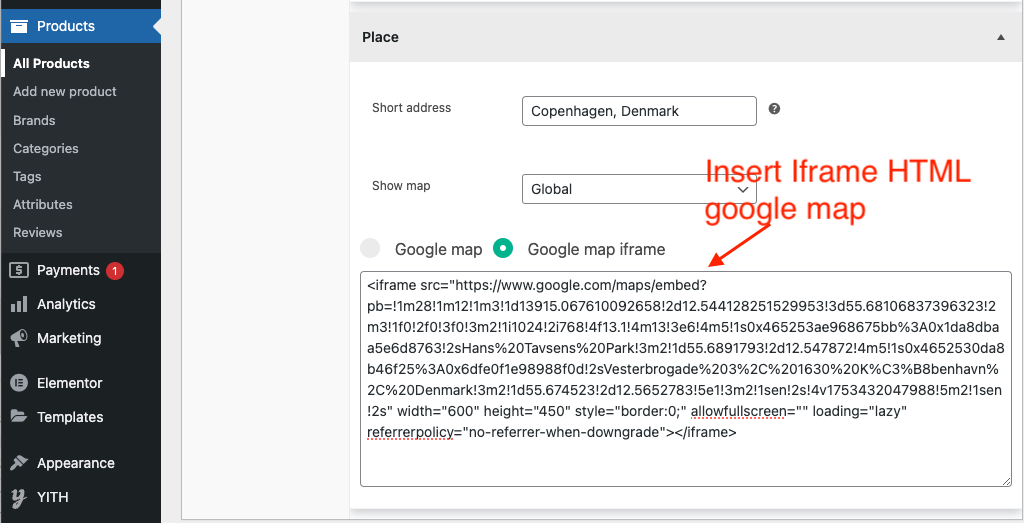
#### d) Use Iframe to display a Route Tour

Create a route tour in Google Maps, then use the "Share or Embed a map" feature to get the iframe

<div><figure><img src="/files/DiQ3SGeE4qSyszgwDeSj" alt=""><figcaption><p>Setup a route tour in google map</p></figcaption></figure> <figure><img src="/files/NTVEzOvT5c9wjZl6vpL9" alt=""><figcaption><p>Backend: insert iframe html</p></figcaption></figure> <figure><img src="/files/CtNLEhKHVxhpSP9wrJrm" alt=""><figcaption><p>Frontend: Tour detail page</p></figcaption></figure></div>

### **1.15: Advanced Options**

<figure><img src="/files/g7MABoyj1jKUAjaRwAZN" alt=""><figcaption></figcaption></figure>

#### **1) Product Template**

<figure><img src="/files/Gc87QBoXi82ephnBeGjw" alt=""><figcaption></figcaption></figure>

* "**Category Settings**": Use the product template that is set up in the category.[ Learn more in Tour Template.](/tripgo/tripgo-menu/products/tour-template.md)&#x20;
* **"Tour detail 1", "Tour detail 2"**: These two templates are built with Elementor. You can create and assign templates to any product. [Learn more in Tour Template.](/tripgo/tripgo-menu/products/tour-template.md)"

#### **2) Disable Weekday**

* Enter the numbers that correspond to each day of the week:

```
0: Sunday
1: Monday
2: Tuesday
3: Wednesday
4: Thursday
5: Friday
6: Saturday
```

<figure><img src="/files/HbOFrcHPHeqmR90aNjGH" alt=""><figcaption></figcaption></figure>

**Example:**

* **Backend:** Enter 0,6
* **Frontend:** The calendar will block Saturday and Sunday.

<figure><img src="/files/amLUcnvx2dFEx4xMxcQ9" alt=""><figcaption></figcaption></figure>

\
**3) X days preparation time**

**Example**:&#x20;

* "X Days Preparation Time": **2**&#x20;
* **Today** is 25 July&#x20;
* \=> The customer is allowed to book from 27 July

<div><figure><img src="/files/HRLlYDLoQQbuWEc6XBh5" alt=""><figcaption></figcaption></figure> <figure><img src="/files/bFe5vWYB1qt4fkHOUBUk" alt=""><figcaption></figcaption></figure></div>

#### 4) Book before X hours today

**Example**:&#x20;

* "Book before X hours today": **18:00**
* Today: **25 July**\
  ⇒ If now is **15:00** => The customer can book this product today\
  ⇒ If now is **19:00** => The customer can't book this product today

<div><figure><img src="/files/8QgRzYIuWu6yt4beTCet" alt=""><figcaption><p>Setup Backend</p></figcaption></figure> <figure><img src="/files/sWEOOpGwvJvUxYJCd7FU" alt=""><figcaption><p>Setup Backend: Slot time for booking</p></figcaption></figure></div>

#### 5) Guest

**a) Setup**

* **Show children field**: "Global", "Yes", "No" options&#x20;
  * Global: Get value from WooCommerce >> Settings >> Booking Tour >> Guests >> Show children field.
  * Yes: Use children for this tour.
  * No: Not Use Children for this tour.
* **Show Babies field**: Choose "Global", "Yes", "No"
  * Global: Get value from WooCommerce >> Settings >> Booking Tour >> Guests >> Show babies field.
  * Yes: Use Baby for this tour.
  * No: Not Use Baby for this tour.

<figure><img src="/files/f5v36tji2s6E1NE3BVH8" alt=""><figcaption></figcaption></figure>

**b) Example**

* Step 1: Choose "Show babies field": No
* Step 2: Save Tour
* Step 3: All baby fields will be hidden in both the backend and frontend sections.

#### 6) **Custom checkout fields**

Use Custom checkout fields in Booking Form, Request Form.

<div><figure><img src="/files/Mgr06rwBIIjdFeVgHUBn" alt=""><figcaption><p>Backend product</p></figcaption></figure> <figure><img src="/files/KxsXZKluUNITa1GPder5" alt=""><figcaption><p>Frontend - Booking Form</p></figcaption></figure></div>

**a) Config**

* **Display custom fields from**: Category Settings, New, No
  * **Category Settings**: Get value that are set up in the category. Lean more in [categories](/tripgo/tripgo-menu/categories.md)
  * **New**: You can insert slug of multi custom checkout fields here. Lent more in [Custom Checkout Field](/tripgo/tripgo-menu/custom-checkout-field.md)
    * Example:

      <div><figure><img src="/files/oMBjqtlWEUmBF1vbtpeX" alt=""><figcaption></figcaption></figure> <figure><img src="/files/L5wnGzd6FcjT0yTg4HNn" alt=""><figcaption></figcaption></figure></div>
  * **No**: Don't use any custom checkout fields.

#### **7) Check-out field**

Show/Hide Check-out date field in booking form, request form

**Display**: Global Settings, Yes, No

* Global settings: Get value that are set up in Global Settings (WooCommerce settings)
* Yes: Display the field .
* No: Hidden the field.&#x20;

<div><figure><img src="/files/RHN79UVgFHWdsgzKTtFP" alt=""><figcaption></figcaption></figure> <figure><img src="/files/Q5U5IttAn3S6xyQrO6pS" alt=""><figcaption></figcaption></figure></div>

#### **8) Forms**

Display Booking Form, Request Form, Enquiry Form in tour detail

<div><figure><img src="/files/Yibj3ZQIKtagIaNLYVNS" alt=""><figcaption></figcaption></figure> <figure><img src="/files/EuGGbOztIM3cxLfw1gD8" alt=""><figcaption></figcaption></figure></div>

**Setup**

* **Show Forms:** Global settings, only booking form, only request form, only enquiry form, show all
  * Global settings: Get value that are set up in the Woocommerce ( Go to WooCommerce >> Settings >> Booking Tours >> Product Details >> "Show booking form", "Show request form", "Show enquiry form"). Learn more in Show Forms
  * Only Booking For&#x6D;**:** Learn more in [Tour Template](/tripgo/tripgo-menu/products/tour-template.md)
  * Only Request For&#x6D;**:**  Learn more in [Tour Template](/tripgo/tripgo-menu/products/tour-template.md)
  * Only Enquiry Form: Show content of shortcode. You can insert Shortcode of "contact form 7" plugin.
  * Show All: Show 3 forms
* **Enquiry Shortcode**:  Insert a shortcode like contact form 7, so the shortcode will display in Enquiry Form.&#x20;

  * If you empty this fields, the tour will get shortcode in[ Enquiry Setting](/tripgo/tripgo-menu/settings.md#id-5-enquiry-form) under WooCommerce Settings.
  * Config Contact Form 7: You have to insert "\[product-link]" in "Message body", so you will see Tour Title and link of tour in mail.
  *

  ```
  <figure><img src="/files/CXbd1yKAUE9uN9oyghKZ" alt=""><figcaption></figcaption></figure>
  ```

#### **9) Header & Footer**

Choose Header & Footer for this tour.

* Global: Get value in Customize (Apperance >> Customize >> WooCommerce >> Product Detail >> choose "Header", "Footer" setting )
* Default: Use "Default" header/footer of theme.&#x20;
* Header, Header Banner, Header Blog Detail, Header 4, Header 6, Footer 1, Footer 2, Footer 3 ...: There header/footer build with elementor. Learn more in [Header Setting](/tripgo/basic/header-settings.md) and [Footer Setting.](/tripgo/basic/footer-settings.md)

<figure><img src="/files/6NhG2tUCs0KeLa5Gtoto" alt=""><figcaption></figcaption></figure>

### 1.16: Add Included/Excluded, Tour Plan

#### **Step 1:** You have to install and active CMB2 plugin

<figure><img src="/files/MGRlpbaxNfCuvenDoR4g" alt=""><figcaption></figcaption></figure>

#### **Step 2**: Show "Included/Excluded, Tour Plan" section when create a tour

<figure><img src="/files/RSPDmdtn4VW9wXJGVJ8q" alt=""><figcaption></figcaption></figure>

#### **Step 3**: Insert Data

<figure><img src="/files/zg931XeXJngPWDrLhILh" alt=""><figcaption></figcaption></figure>

#### **Step 4:** Display in tour detail page

<figure><img src="/files/XylpBGoHzBlfMVQn6NHP" alt=""><figcaption></figcaption></figure>

## 2: Tour Template

To learn how to create, customize, and assign tour templates for each tour, please [read here](/tripgo/tripgo-menu/products/tour-template.md).