> For the complete documentation index, see [llms.txt](https://ova-themes.gitbook.io/tripgo/llms.txt). Markdown versions of documentation pages are available by appending `.md` to page URLs; this page is available as [Markdown](https://ova-themes.gitbook.io/tripgo/tripgo-menu/custom-checkout-field.md).
# Custom Checkout Field
The Custom Checkout Fields feature supports add more fields to your booking/enquiry form so as to customize it to best match your business needs.
Go to Tripgo >> Custom checkout field
## 1: Create custom checkout fields
Custom Checkout Field will be displayed in Booking Form and Enquiry Booking Form.
**Go to Tripgo >> Custom checkout field >>** Click **Add Field**
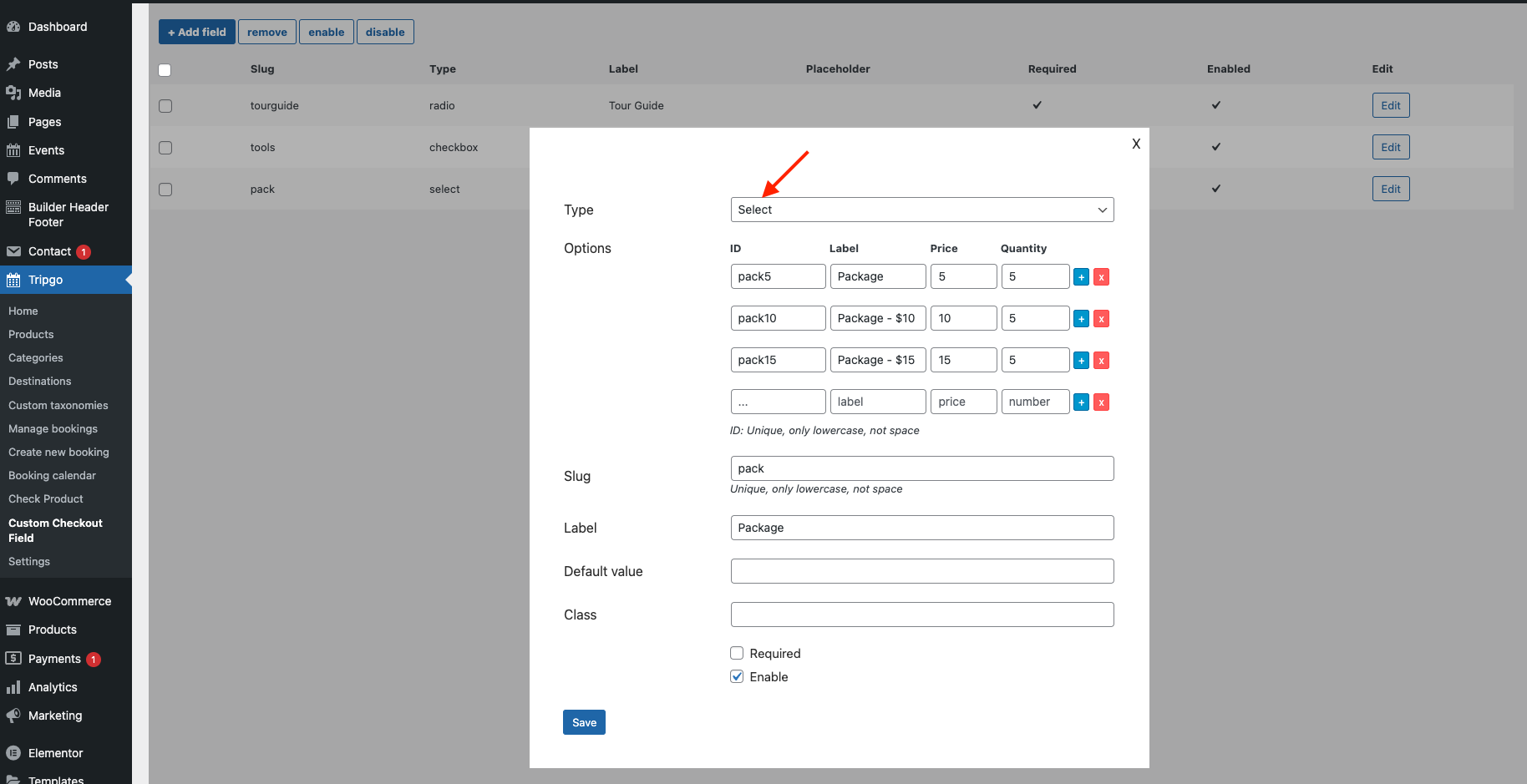
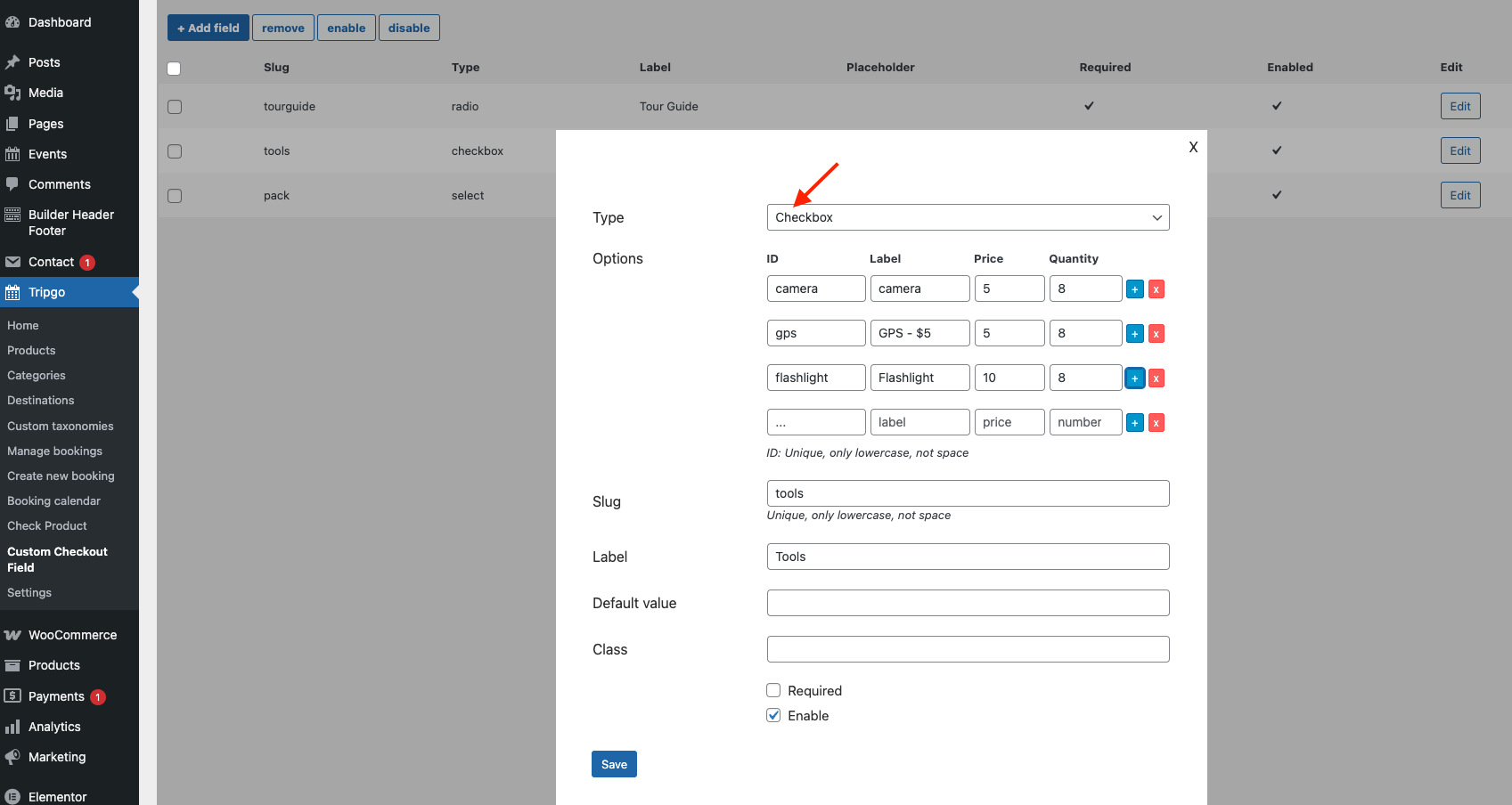
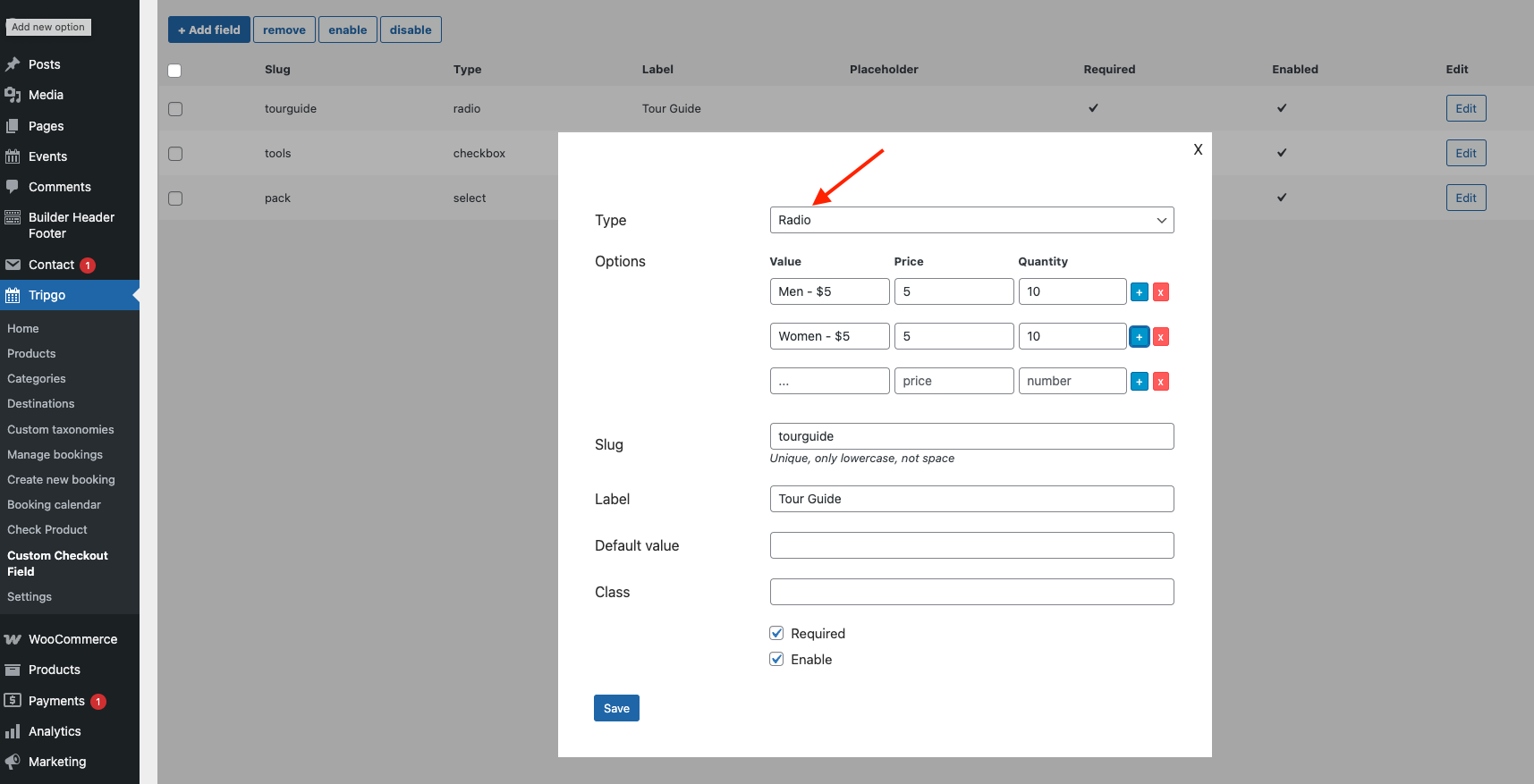
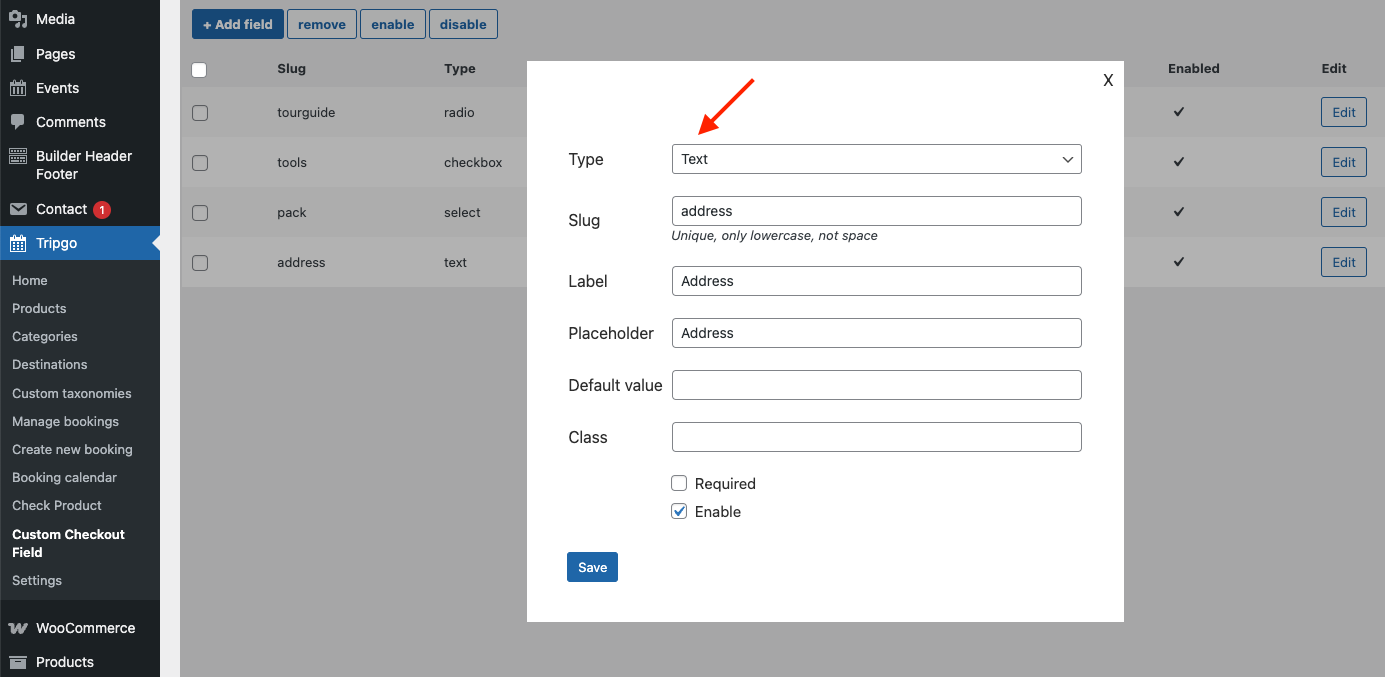
* **Types**: The theme supports 9 different types of Custom Checkout fields including Text, Password, Email, Phone, Textarea, Select(dropdown), File, Checkbox, Radio
* **Slug:** This name will be show in List of Custom Checkout Fields in backend**.** You should add Unique Name, Not Space and Lowercase.
* **Price:** The Price Field only use for some types of Custom Checkout Field such as Radio, Checkbox and Select.
* **Label:** Label of Custom Checkout Field will be displayed at frontend
* **Default Value:**
* **Class:**
* **Required**: Mark Custom Checkout fields as required/non-required
* **Enable**: Enable/Disable Custom Checkout field in the form. This value is overridden in each product.
Select type
Checkbox type
Radio type
Text type
Phone type
Email type
Password type
Textarea type
File Type
## 2: Use Custom Checkout Field
If you want to create a new product and like to add separate Custom Checkout Fields for that product:
Go to P**roducts >> Add New >> Advanced Options >> Custom Checkout Fields**
In Display Custom Fields From Drop-down, there are 2 options to choose:
* **Category Setting :** Get fields that setup in [category](/tripgo/tripgo-menu/categories.md)
* **New:** You can choose some fields only for this product
* **No:** Don't use custom checkout field for this product.
## 3: Display at frontend
The custom checkout fields will display in Booking Form and Request Form