> For the complete documentation index, see [llms.txt](https://ova-themes.gitbook.io/transflash/llms.txt). Markdown versions of documentation pages are available by appending `.md` to page URLs; this page is available as [Markdown](https://ova-themes.gitbook.io/transflash/theme-options.md).

# Create A Page

This feature allows you to create a new page according to your requirement that doesn't have in Mellis theme

Go to: WordPress Admin Panel >> Pages >> Ad New Page

## General Settings <a href="#general-settings" id="general-settings"></a>

***Please, note***: To display this general setting, you need to install and active CMB2 plugin

## 1. Header Version <a href="#id-1.-header-version" id="id-1.-header-version"></a>

Choose one of options of header version drop-down for your page

<figure><img src="https://2950831722-files.gitbook.io/~/files/v0/b/gitbook-x-prod.appspot.com/o/spaces%2FrBL0RfxDBqGZBQvc99pQ%2Fuploads%2F5E52rpqfUsrM5HMBCMME%2Fimage.png?alt=media&amp;token=66898b74-9791-464f-af3c-caa89360d95e" alt=""><figcaption></figcaption></figure>

Options of Header Version Drop-down:

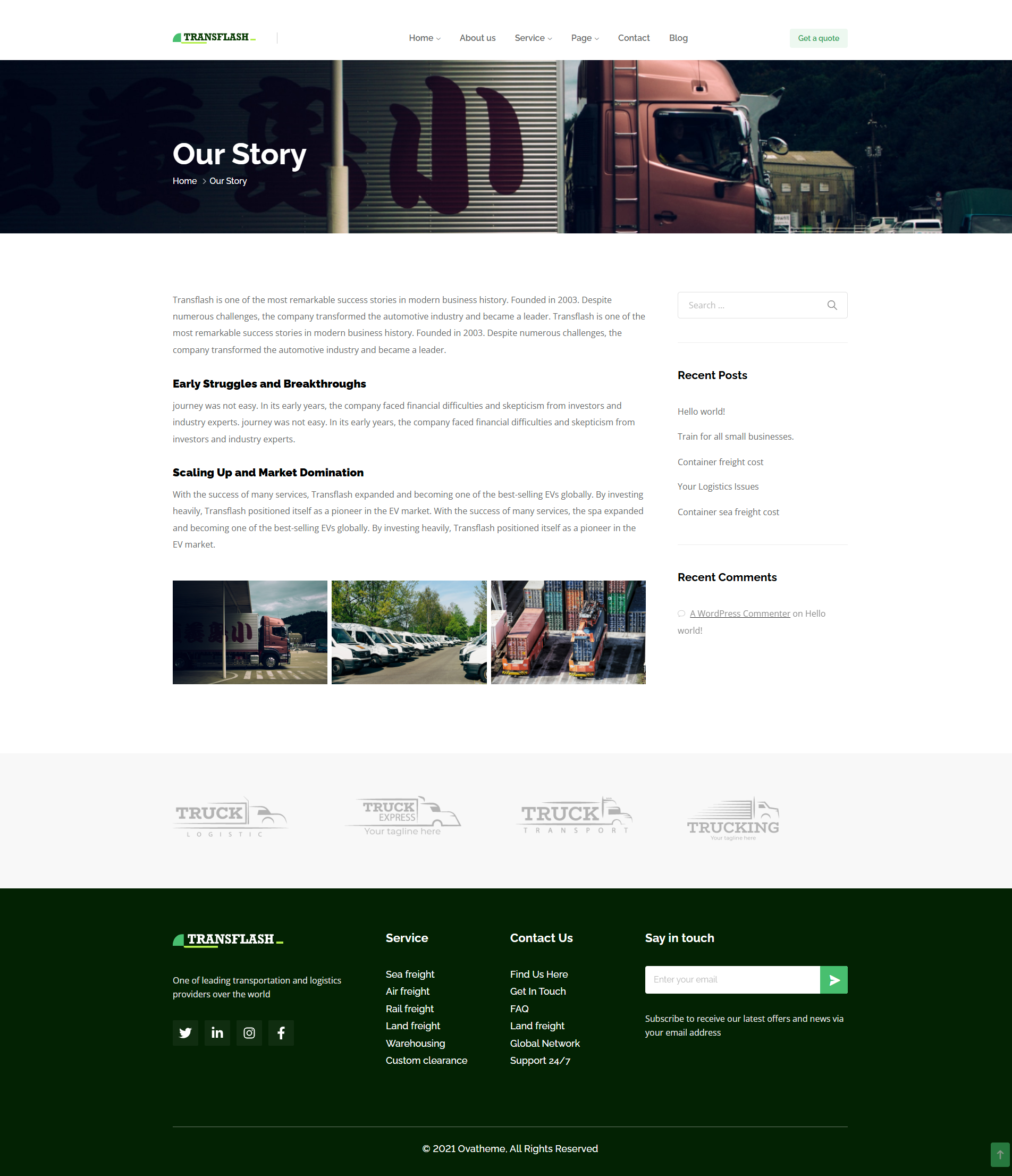
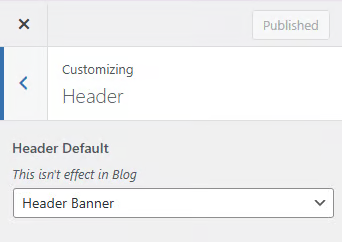
* **Global**: Use the header that is set in Appearance >> Customize >> Header

<figure><img src="https://2950831722-files.gitbook.io/~/files/v0/b/gitbook-x-prod.appspot.com/o/spaces%2FrBL0RfxDBqGZBQvc99pQ%2Fuploads%2FnejpfAD52ifzVFPrSFp1%2Fimage.png?alt=media&amp;token=af928ed1-3618-4e41-b986-db54a82d5125" alt=""><figcaption></figcaption></figure>

* **Default**: Use Default Header. You only can customize this header in template file (header.php file in theme)
* **Header 1, Header Banner**: Choose one of these header versions for your page. To change data for these headers, you need to use Elementor

## 2. Footer Version <a href="#id-2.-footer-version" id="id-2.-footer-version"></a>

Choose one of options in Footer Version Drop-down for your page

<figure><img src="https://2950831722-files.gitbook.io/~/files/v0/b/gitbook-x-prod.appspot.com/o/spaces%2FrBL0RfxDBqGZBQvc99pQ%2Fuploads%2FzgLL4MxPY4fZjT21j2l3%2Fimage.png?alt=media&amp;token=b4ed69f0-2884-4d11-95b0-b15451248abf" alt=""><figcaption></figcaption></figure>

* **Global**: Use the footer that is set in Appearance >> Customize >> Footer

<figure><img src="https://2950831722-files.gitbook.io/~/files/v0/b/gitbook-x-prod.appspot.com/o/spaces%2FrBL0RfxDBqGZBQvc99pQ%2Fuploads%2FMfP8q9Lc55TBR5gI8WPq%2Fimage.png?alt=media&amp;token=e3c64a19-8053-4ebd-9305-a158f64f7497" alt=""><figcaption></figcaption></figure>

* **Default**: Use Default Footer. You only can customize this footer in template file ( footer.php file in theme)
* **Footer, Footer 1, Footer 2**: Choose one of these footer versions for your page. To change data for these footers, you need to use Elementor

## 3. Main Layout <a href="#id-3.-main-layout" id="id-3.-main-layout"></a>

The Main Layout of your page will depend on the template type you choose: Default template, Elementor full with, or Elementor Canvas:

<figure><img src="https://2950831722-files.gitbook.io/~/files/v0/b/gitbook-x-prod.appspot.com/o/spaces%2FrBL0RfxDBqGZBQvc99pQ%2Fuploads%2FJ9cD21NEpnPM7ZDgXJIi%2Fcreate-a-page-transflash.png?alt=media&amp;token=1c7be869-256b-4662-a557-e2b1065def20" alt=""><figcaption></figcaption></figure>

### **3.1 Default Template** <a href="#id-3.1-default-template" id="id-3.1-default-template"></a>

***Please, note***: If in Template tab, you choose Default template, the option you choose in Main Layout tab will be applied to your page

<figure><img src="https://2950831722-files.gitbook.io/~/files/v0/b/gitbook-x-prod.appspot.com/o/spaces%2FrBL0RfxDBqGZBQvc99pQ%2Fuploads%2FD25gu6Jdux8AbeGjq82S%2Fcreate-a-page-transflash-1.png?alt=media&amp;token=15a783d6-2927-45f8-8599-96e969e2ab4b" alt=""><figcaption></figcaption></figure>

* **Global**: The setting in the **Layout** tab (Appearance >> Customize >> Layout) will be applied to your page.

<figure><img src="https://2950831722-files.gitbook.io/~/files/v0/b/gitbook-x-prod.appspot.com/o/spaces%2FrBL0RfxDBqGZBQvc99pQ%2Fuploads%2FyvzxdvBWcZm4M8i2LZzL%2Fcreate-a-page-transflash-2.png?alt=media&amp;token=c2562b28-cbb8-498a-a796-534cc66a459e" alt=""><figcaption></figcaption></figure>

Suppose that in the Layout tab (Appearance >> Customize >> Layout), you choose: Right Side Bar, the page with default template will be displayed below:

<figure><img src="https://2950831722-files.gitbook.io/~/files/v0/b/gitbook-x-prod.appspot.com/o/spaces%2FrBL0RfxDBqGZBQvc99pQ%2Fuploads%2FoKETP6hlWGZmovfrRzu6%2Fcreate-a-page-transflash-3.png?alt=media&amp;token=b89a3362-a7d3-44a1-8cf3-33a752eaa6d2" alt=""><figcaption></figcaption></figure>

* **No Sidebar, Left Sidebar, and Right Sidebar**: You can set the layout for your page by choosing the position of the sidebar. **Note:** When you select one of these options, the setting in the **Layout** tab (Appearance >> Customize >> Layout) will not affect your page.

### **3.2 Elementor Full With** <a href="#id-3.2-elementor-full-with" id="id-3.2-elementor-full-with"></a>

***Please, note***: If in Template tab, you choose Elementor Full With , the setting in Main Layout drop-down won't affect to your page

No matter what you choose in the Main Layout tab, the page with Elementor Full With will be showed below:

<figure><img src="https://2950831722-files.gitbook.io/~/files/v0/b/gitbook-x-prod.appspot.com/o/spaces%2FrBL0RfxDBqGZBQvc99pQ%2Fuploads%2FGDIg4G1rSElO4DHDXbYj%2Fcreate-a-page-transflash-4.png?alt=media&amp;token=40825056-ff98-4648-b945-e799ce4e7be8" alt=""><figcaption></figcaption></figure>

### **3.3 Elementor Canvas** <a href="#id-3.3-elementor-canvas" id="id-3.3-elementor-canvas"></a>

***Please, note***: If in Template tab, you choose Elementor Canvas , the setting in Main Layout drop-down won't affect to your page

No matter what you choose in the Main Layout tab, When you select: Elementor Canvas in template tab, your page will only include components you added

<figure><img src="https://2950831722-files.gitbook.io/~/files/v0/b/gitbook-x-prod.appspot.com/o/spaces%2FrBL0RfxDBqGZBQvc99pQ%2Fuploads%2F1BOIWaeMkNYTlJwEPEvc%2Fcreate-a-page-transflash-5.png?alt=media&amp;token=220b5a73-dc59-4eb9-b7ca-53f53dab571f" alt=""><figcaption></figcaption></figure>

## 4. Wide Site <a href="#id-4.-wide-site" id="id-4.-wide-site"></a>

The Wide Site of your page will depend on the template type you choose: Default template, Elementor full with, or Elementor Canvas:

<figure><img src="https://2950831722-files.gitbook.io/~/files/v0/b/gitbook-x-prod.appspot.com/o/spaces%2FrBL0RfxDBqGZBQvc99pQ%2Fuploads%2FDZt79fdtETHfkoTib0Mu%2Fimage.png?alt=media&amp;token=cc889864-2f8b-4c30-98a7-03b3ecb02de1" alt=""><figcaption></figcaption></figure>

### **4.1 Default template** <a href="#id-4.1-default-template" id="id-4.1-default-template"></a>

***Please, note***: If in Template tab, you choose Default template, the option you choose in Wide Site drop-down will be applied to your page

<figure><img src="https://ova-themes.gitbook.io/~gitbook/image?url=https%3A%2F%2F1372372633-files.gitbook.io%2F%7E%2Ffiles%2Fv0%2Fb%2Fgitbook-x-prod.appspot.com%2Fo%2Fspaces%252FueaMLBtrFLClGEGmoXI9%252Fuploads%252FcHYpxGENwaEnu3OP2OsO%252Fcreate-a-page-mellis-6.png%3Falt%3Dmedia%26token%3De06fd27c-f6c9-493b-a8a7-d4f6dfc5d750&#x26;width=768&#x26;dpr=4&#x26;quality=100&#x26;sign=f9b11917&#x26;sv=2" alt=""><figcaption></figcaption></figure>

* **Global**: The setting in the **Wide Site** Drop-down (Appearance >> Customize >> Layout) will be applied to your page.

<figure><img src="https://2950831722-files.gitbook.io/~/files/v0/b/gitbook-x-prod.appspot.com/o/spaces%2FrBL0RfxDBqGZBQvc99pQ%2Fuploads%2FkDfXxCNuU7EFD6ofeIAB%2Fcreate-a-page-transflash-6.png?alt=media&amp;token=3bb47589-9428-42ad-ae2b-ef9aacfbaba1" alt=""><figcaption></figcaption></figure>

Suppose that in the **Wide Site** Drop-down (Appearance >> Customize >> Layout), you choose: Boxed option, the page with default template will showcased below:

<figure><img src="https://2950831722-files.gitbook.io/~/files/v0/b/gitbook-x-prod.appspot.com/o/spaces%2FrBL0RfxDBqGZBQvc99pQ%2Fuploads%2FljzCuN1oCTUnRW7XT3pK%2Fcreate-a-page-transflash-7.png?alt=media&amp;token=7fdfc4b1-c178-4ac0-9f43-acf6111f2407" alt=""><figcaption></figcaption></figure>

* **Wide, boxed**: Choose wide if you want to have a full page layout, choose boxed if you want to have a boxed page layout. **Note:** When you select one of these options, the setting in the **Wide Site drop-down** (Appearance >> Customize >> Layout) will not affect your page.

### **4.2 Elementor Full With** <a href="#id-4.2-elementor-full-with" id="id-4.2-elementor-full-with"></a>

***Please, note***: If in Template tab, you choose Elementor Full With, the option you choose in Wide Site drop-down will be applied to your page.

If you choose boxed option in Wide site, the page with Elementor Full With will be displayed below:

<figure><img src="https://2950831722-files.gitbook.io/~/files/v0/b/gitbook-x-prod.appspot.com/o/spaces%2FrBL0RfxDBqGZBQvc99pQ%2Fuploads%2FM003ZgMj6tkCDcz4mDu9%2Fcreate-a-page-transflash-8.png?alt=media&amp;token=f7e64ae7-a8b2-4076-b73a-41666db8f476" alt=""><figcaption></figcaption></figure>

### **4.3 Elementor Canvas** <a href="#id-4.3-elementor-canvas" id="id-4.3-elementor-canvas"></a>

***Please, note***: If in Template tab, you choose Elementor Canvas, the option you choose in Wide Site drop-down won't applied to your page.

<figure><img src="https://2950831722-files.gitbook.io/~/files/v0/b/gitbook-x-prod.appspot.com/o/spaces%2FrBL0RfxDBqGZBQvc99pQ%2Fuploads%2FbnQEwc7M1l54zCP9rmsk%2Fimage.png?alt=media&amp;token=7c99def7-bb7f-4293-ab9e-881f465d8eae" alt=""><figcaption></figcaption></figure>