> For the complete documentation index, see [llms.txt](https://ova-themes.gitbook.io/qomfort/llms.txt). Markdown versions of documentation pages are available by appending `.md` to page URLs; this page is available as [Markdown](https://ova-themes.gitbook.io/qomfort/theme-options.md).
# Create A Page
This feature allows you to create a new page according to your requirement that doesn't have in Mellis theme
Go to: WordPress Admin Panel >> Pages >> Ad New Page
## General Settings
***Please, note***: To display this general setting, you need to install and active CMB2 plugin
## 1. Header Version
Choose one of options of header version drop-down for your page
Options of Header Version Drop-down:
* **Global**: Use the header that is set in Appearance >> Customize >> Header
* **Default**: Use Default Header. You only can customize this header in template file (header.php file in theme)
* **Header, Header 2, Header 3, Header 4, Header Banner, Header Banner 2, Header Banner Special Offer**: You can choose one of these headers for the page. If you choose these headers, you can change it in Builder Header Footer >> All HF
## 2. Footer Version
Choose one of options in Footer Version Drop-down for your page
* **Global**: Use the footer that is set in Appearance >> Customize >> Footer
* **Default**: Use Default Footer. You only can customize this footer in template file ( footer.php file in theme)
* **Footer, Footer 2, Footer 3, Footer No Margin**: If you choose these footers, you can change theme in Builder Header Footer >> All HF
## 3. Main Layout
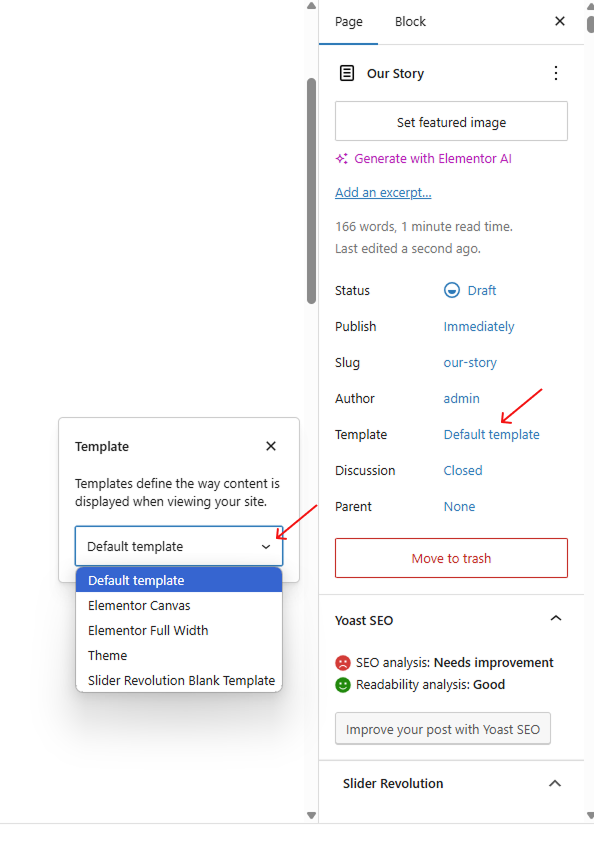
The Main Layout of your page will depend on the template type you choose: Default template, Elementor full with, or Elementor Canvas:
### **3.1 Default Template**
***Please, note***: If in Template tab, you choose Default template, the option you choose in Main Layout tab will be applied to your page
* **Global**: The setting in the **Layout** tab (Appearance >> Customize >> Layout) will be applied to your page.
Suppose that in the Layout tab (Appearance >> Customize >> Layout), you choose: Right Side Bar, the page with default template will be displayed below:
* **No Sidebar, Left Sidebar, and Right Sidebar**: You can set the layout for your page by choosing the position of the sidebar. **Note:** When you select one of these options, the setting in the **Layout** tab (Appearance >> Customize >> Layout) will not affect your page.
### **3.2 Elementor Full With**
***Please, note***: If in Template tab, you choose Elementor Full With , the setting in Main Layout drop-down won't affect to your page
No matter what you choose in the Main Layout tab, the page with Elementor Full With will be showed below:
### **3.3 Elementor Canvas**
***Please, note***: If in Template tab, you choose Elementor Canvas , the setting in Main Layout drop-down won't affect to your page
No matter what you choose in the Main Layout tab, When you select: Elementor Canvas in template tab, your page will only include components you added
## 4. Wide Site
The Wide Site of your page will depend on the template type you choose: Default template, Elementor full with, or Elementor Canvas:
### **4.1 Default template**
***Please, note***: If in Template tab, you choose Default template, the option you choose in Wide Site drop-down will be applied to your page
* **Global**: The setting in the **Wide Site** Drop-down (Appearance >> Customize >> Layout) will be applied to your page.
Suppose that in the **Wide Site** Drop-down (Appearance >> Customize >> Layout), you choose: Boxed option, the page with default template will showcased below:
* **Wide, boxed**: Choose wide if you want to have a full page layout, choose boxed if you want to have a boxed page layout. **Note:** When you select one of these options, the setting in the **Wide Site drop-down** (Appearance >> Customize >> Layout) will not affect your page.
### **4.2 Elementor Full With**
***Please, note***: If in Template tab, you choose Elementor Full With, the option you choose in Wide Site drop-down will be applied to your page.
If you choose boxed option in Wide site, the page with Elementor Full With will be displayed below:
### **4.3 Elementor Canvas**
***Please, note***: If in Template tab, you choose Elementor Canvas, the option you choose in Wide Site drop-down won't applied to your page.