> For the complete documentation index, see [llms.txt](https://ova-themes.gitbook.io/pogon/llms.txt). Markdown versions of documentation pages are available by appending `.md` to page URLs; this page is available as [Markdown](https://ova-themes.gitbook.io/pogon/global/install-theme.md).

# Install Theme

## 1: **Requirements For Our Theme**

\- To use theme, you must be running **WordPress 5.x, PHP 5.6. PHP 7.x or higher, and mysql 5 or higher**. Follow below checklist to ensure your host can work well with theme:&#x20;

\+ Your web host has the minimum requirements to run WordPress.

\+ They are running the latest version of WordPress.

\+ You can download the latest release of WordPress from official WordPress website.

\+ You did create best secure passwords FTP and Database.\
&#x20;

Some settings for Server/Hosting

max\_execution\_time = 180\
max\_input\_time = 600\
post\_max\_size = 128M\
upload\_max\_filesize = 60M

## **2: Download Theme Package**

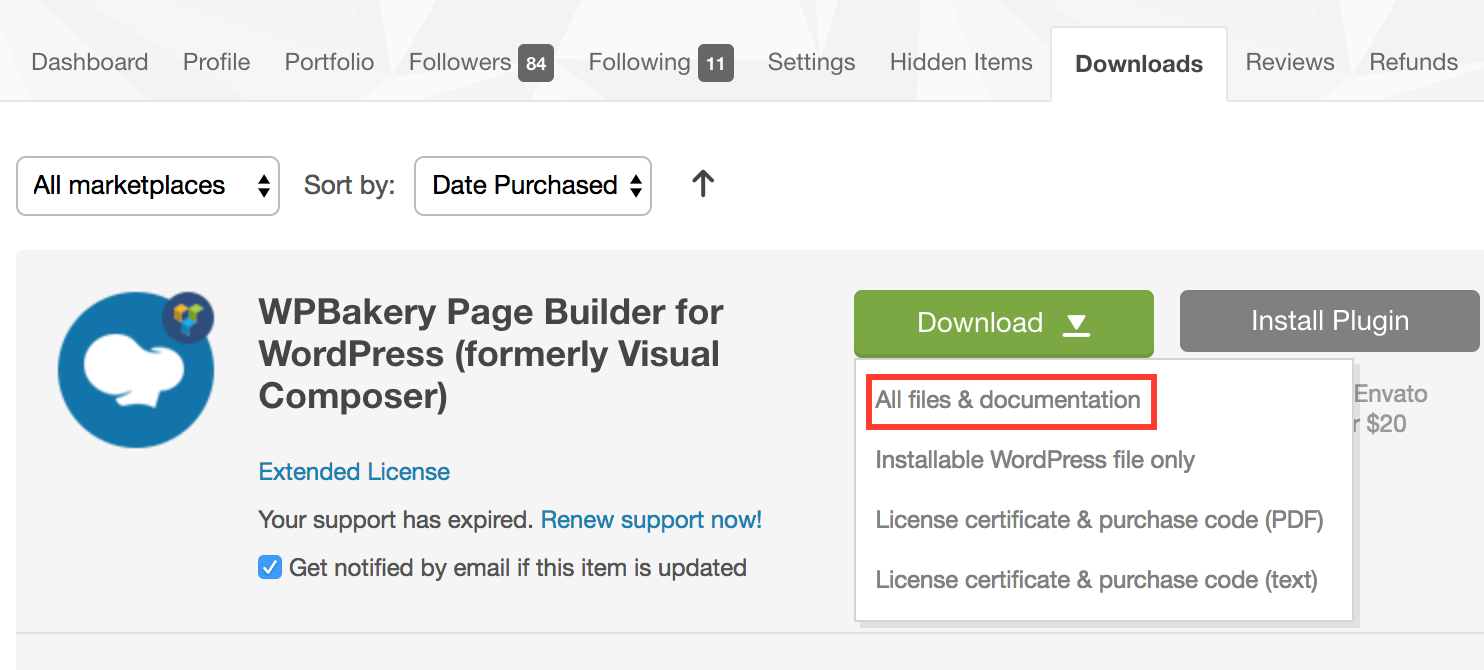
After purchasing our theme from Themeforest, you will need to download theme package for your use. To download the package, please login to your Themeforest account, navigate to “**Downloads**”, click the “**Download**” button in the left of the theme, choose “**All files & documentation**” to download our theme package to your computer. The theme package includes:

<figure><img src="https://demo.ovathemes.com/documentation/pogon/assets/images/image_8.png" alt=""><figcaption></figcaption></figure>

&#x20;

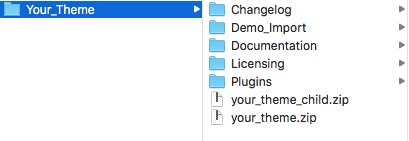
You have to **UNZIP PACKAGE,** you will see all folders, files in package:\
&#x20;

**Theme File:** Includes **your\_theme.zip** file that consists of everything you need to install the theme.

**Child Theme File:** Includes  **your\_theme-child.zip** file&#x20;

**Demo Import Folder:** Includes .xml, .wie, .json file for import content, cubeportoflio, widget

**Plugins Folder:** Include **a**ll **local plugins** use in theme

**Changelog file:** Include **readme.txt.** Read to know changes in all version.

**Documentation Folder**: Includes Documentation file that helps you get to know about theme and guides you to build your site with our theme.

**Licensing Folder:** Includes the licensing files of Themeforest purchase.\
&#x20;

<figure><img src="https://demo.ovathemes.com/documentation/pogon/assets/images/image_30.jpg" alt=""><figcaption></figcaption></figure>

## **3: Install Theme / Plugins**

This is example for install your theme, mean your\_theme.zip is pogon.zip, your\_theme-child.zip is pogon-child.zip

### **Step 1 :** From Admin Menu click Appearence >> Themes >> Add New

<figure><img src="https://demo.ovathemes.com/documentation/pogon/assets/images/image_14.jpg" alt=""><figcaption></figcaption></figure>

### **Step 2:** Install Parent Theme **your\_theme.zip**

<figure><img src="https://demo.ovathemes.com/documentation/pogon/assets/images/image_22.jpg" alt=""><figcaption></figcaption></figure>

Then upload Parent theme, Return To Themes Page to install Child Theme

<figure><img src="https://demo.ovathemes.com/documentation/pogon/assets/images/image_23.jpg" alt=""><figcaption></figcaption></figure>

### &#x20;**Step 3:** Install Child Theme **your\_theme-child.zip**

Install Child Theme **your\_theme-child.zip** like install Parent theme

<figure><img src="https://demo.ovathemes.com/documentation/pogon/assets/images/image_14.jpg" alt=""><figcaption></figcaption></figure>

<figure><img src="https://demo.ovathemes.com/documentation/pogon/assets/images/image_24.jpg" alt=""><figcaption></figcaption></figure>

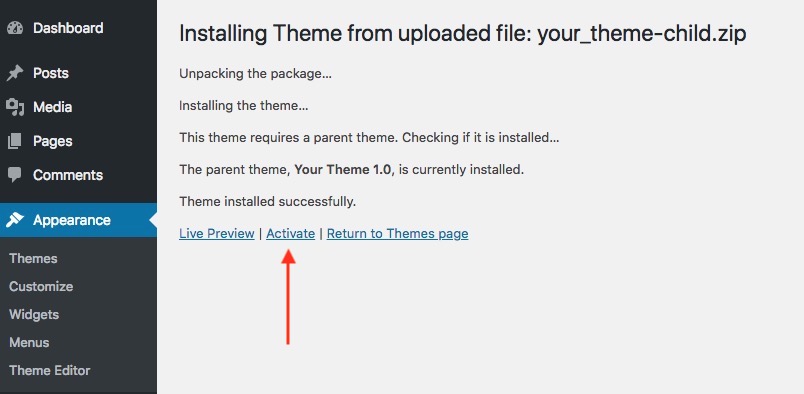
### &#x20;**Step 4:** Active Child Theme

<figure><img src="https://demo.ovathemes.com/documentation/pogon/assets/images/image_25.jpg" alt=""><figcaption></figcaption></figure>

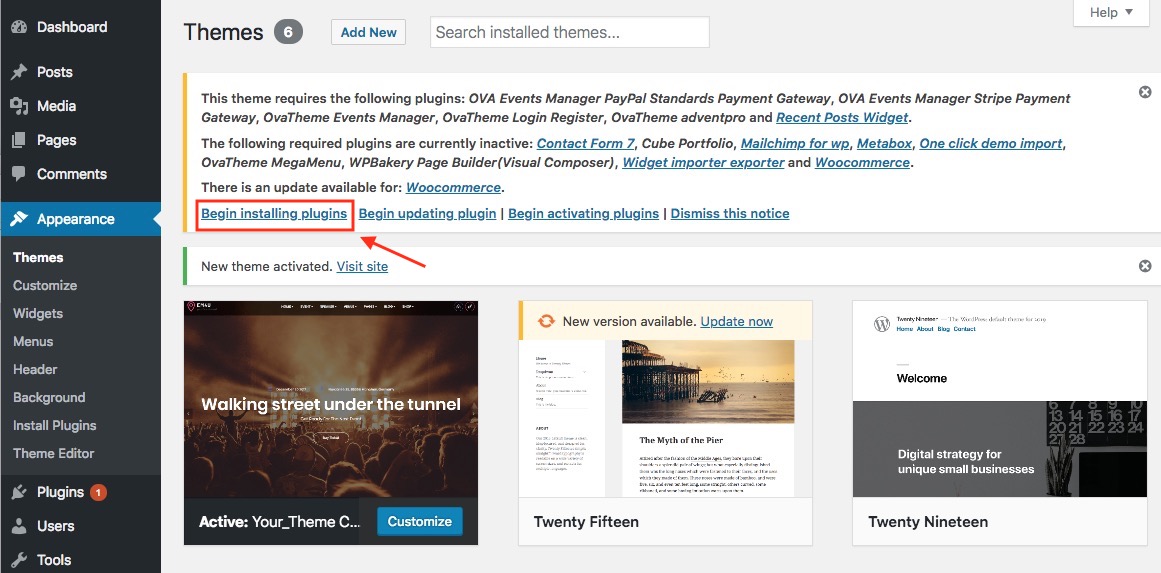
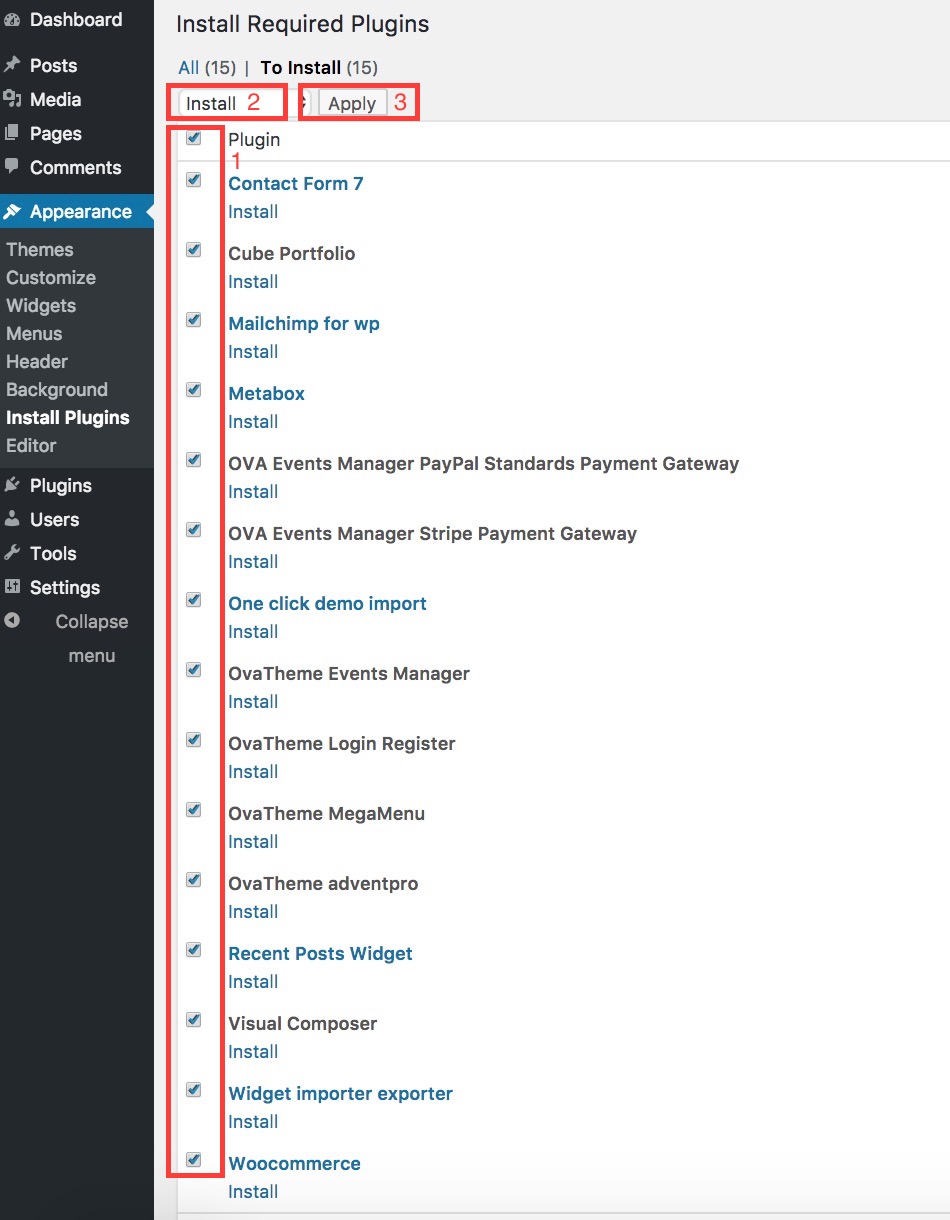
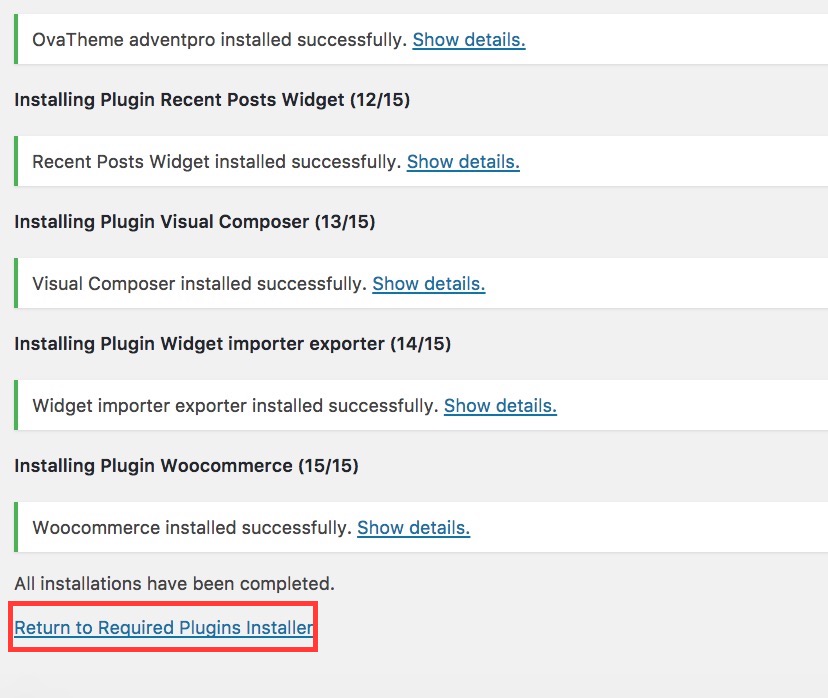
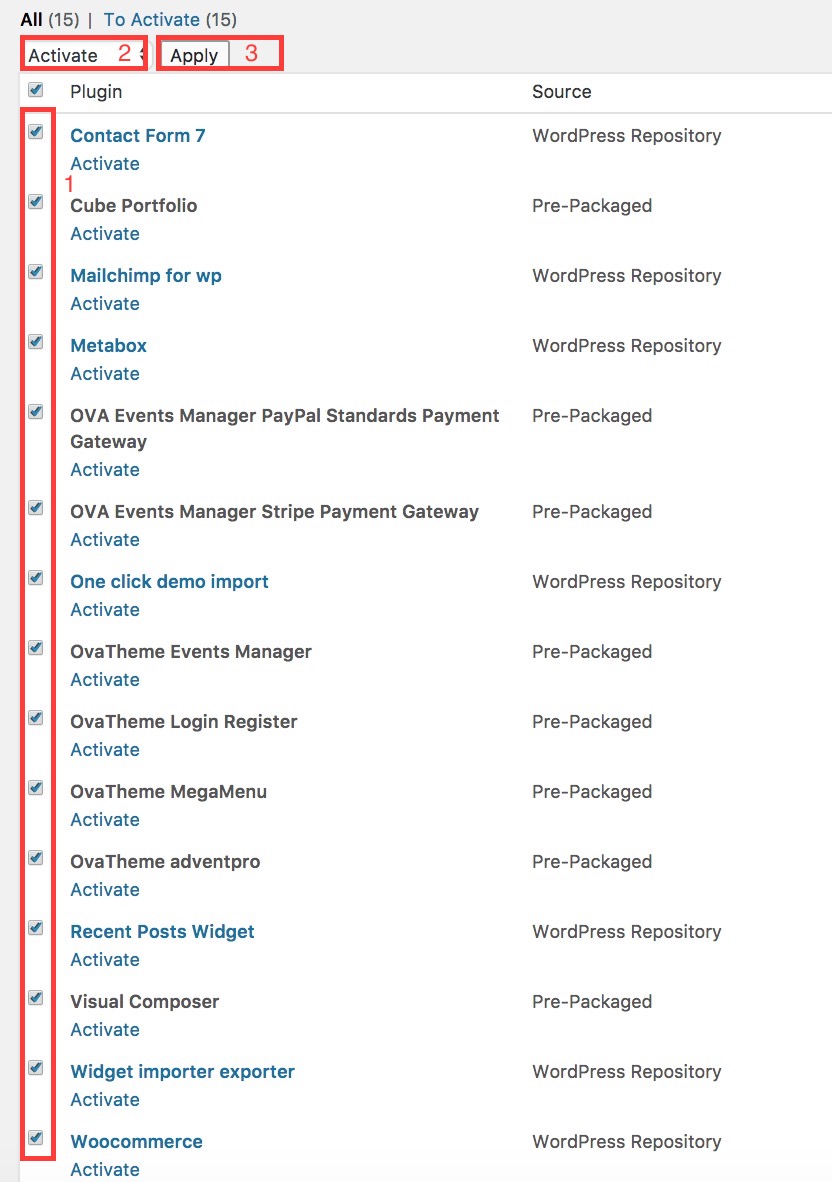
### &#x20;**Step 5:** Install and Active Plugins

<figure><img src="https://demo.ovathemes.com/documentation/pogon/assets/images/image_26.jpg" alt=""><figcaption></figcaption></figure>

<figure><img src="https://demo.ovathemes.com/documentation/pogon/assets/images/image_10.jpg" alt=""><figcaption></figcaption></figure>

<figure><img src="https://demo.ovathemes.com/documentation/pogon/assets/images/image_11.jpg" alt=""><figcaption></figcaption></figure>

<figure><img src="https://demo.ovathemes.com/documentation/pogon/assets/images/image_12.jpg" alt=""><figcaption></figcaption></figure>

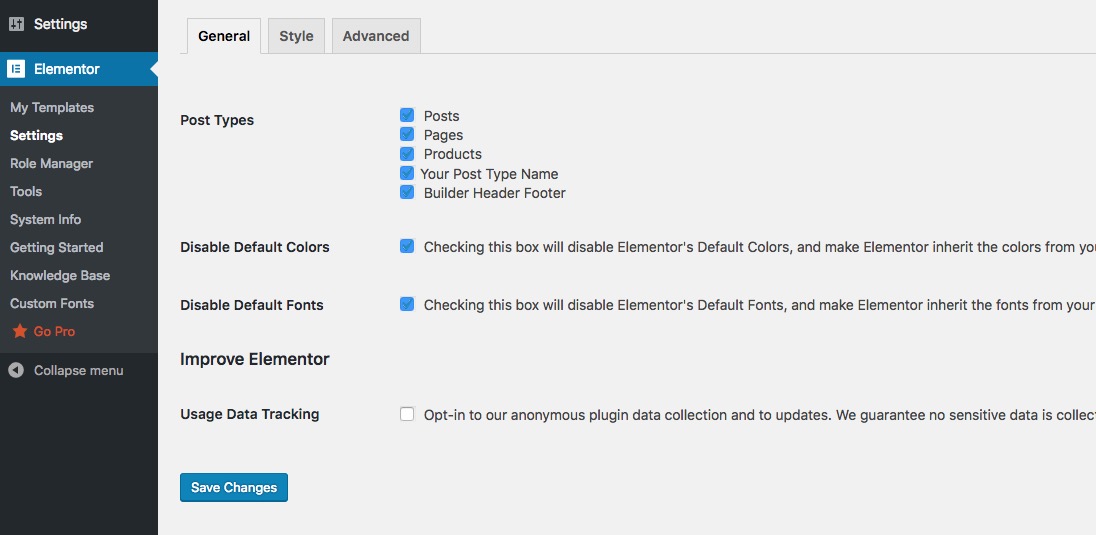
### &#x20;**Step 6**: Config Elementor: Go to **Elementor >> Settings >> General**

<figure><img src="https://demo.ovathemes.com/documentation/pogon/assets/images/image_1.jpg" alt=""><figcaption></figcaption></figure>

## **4: Import Demo Data**

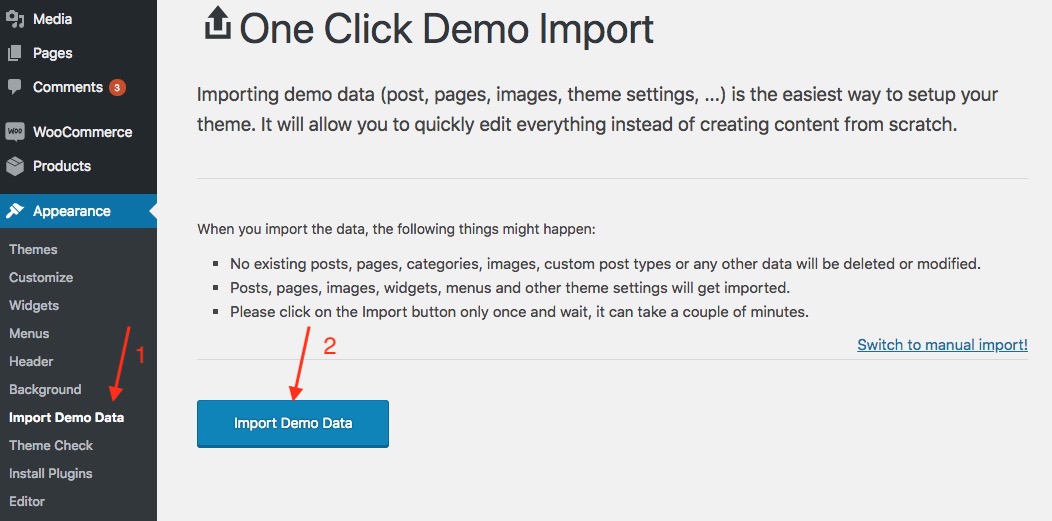
### 4.1: Automatically Import&#x20;

\- Go to **Appearance >> Import Demo Data >>** Wait some minutes and go to frontend to enjoy your results "

<figure><img src="https://demo.ovathemes.com/documentation/pogon/assets/images/image_17.jpg" alt=""><figcaption></figcaption></figure>

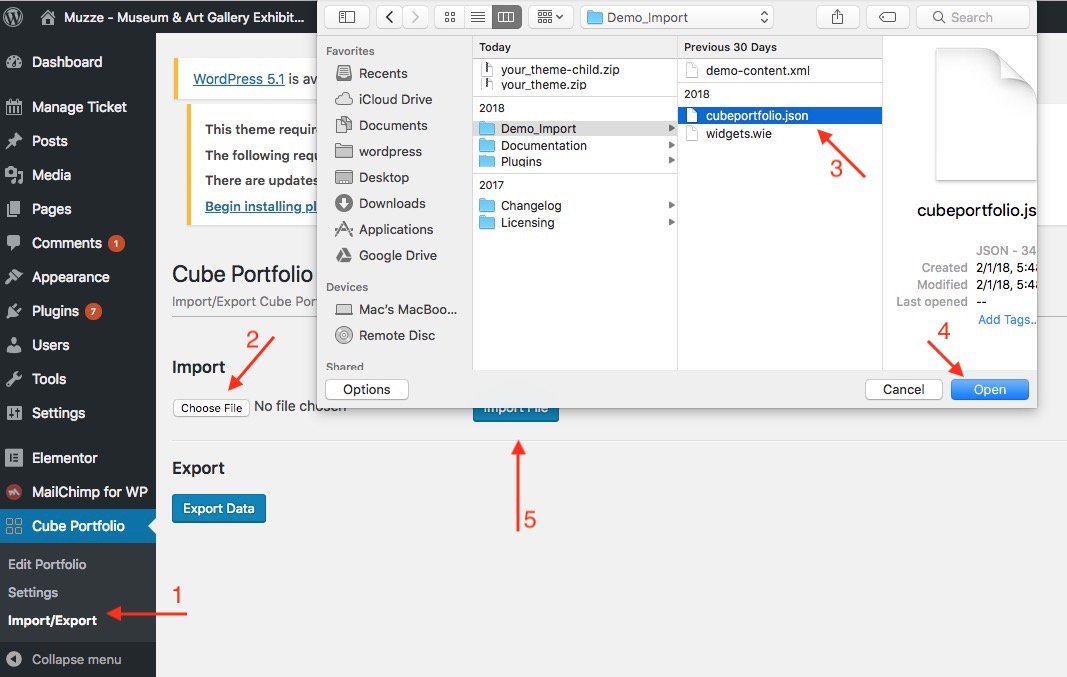
**- Import Cube Portfolio Gallery:** From Admin Panel click **CubePortfolio**

<figure><img src="https://demo.ovathemes.com/documentation/pogon/assets/images/image_29.jpg" alt=""><figcaption></figcaption></figure>

<figure><img src="https://demo.ovathemes.com/documentation/pogon/assets/images/image_15.jpg" alt=""><figcaption></figcaption></figure>

### 4.2: Manually Import&#x20;

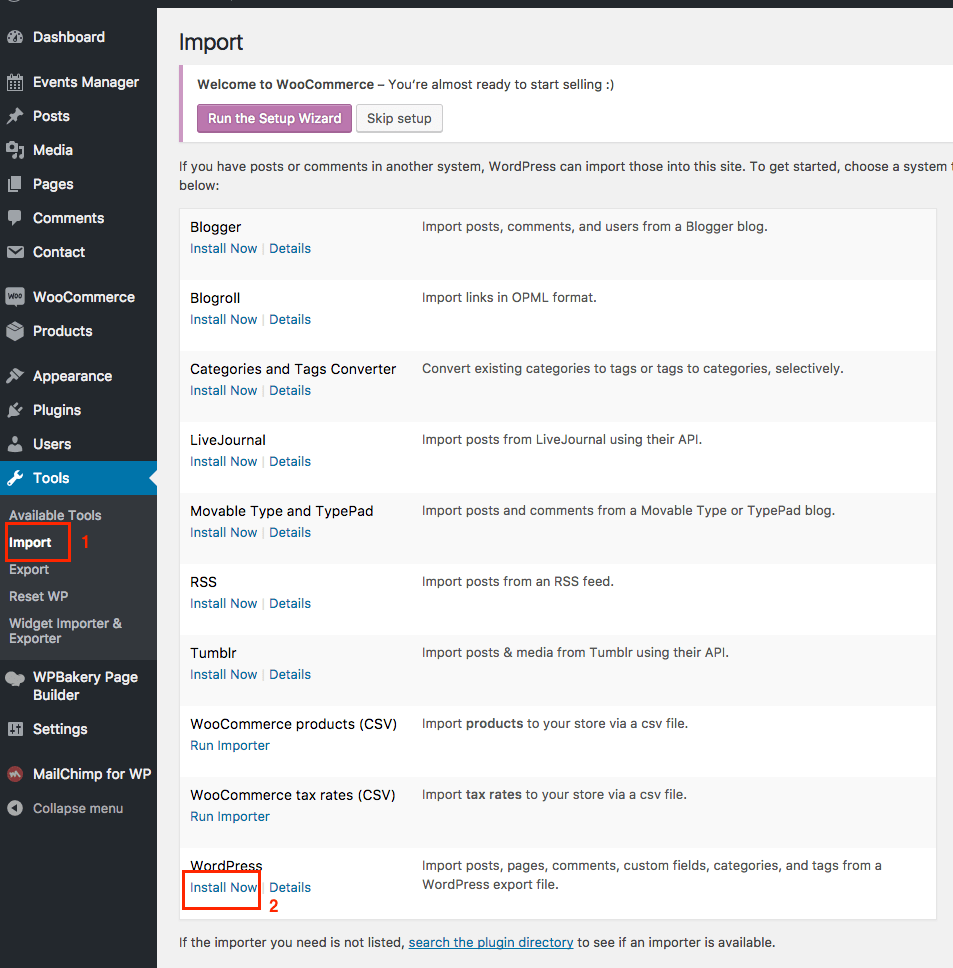
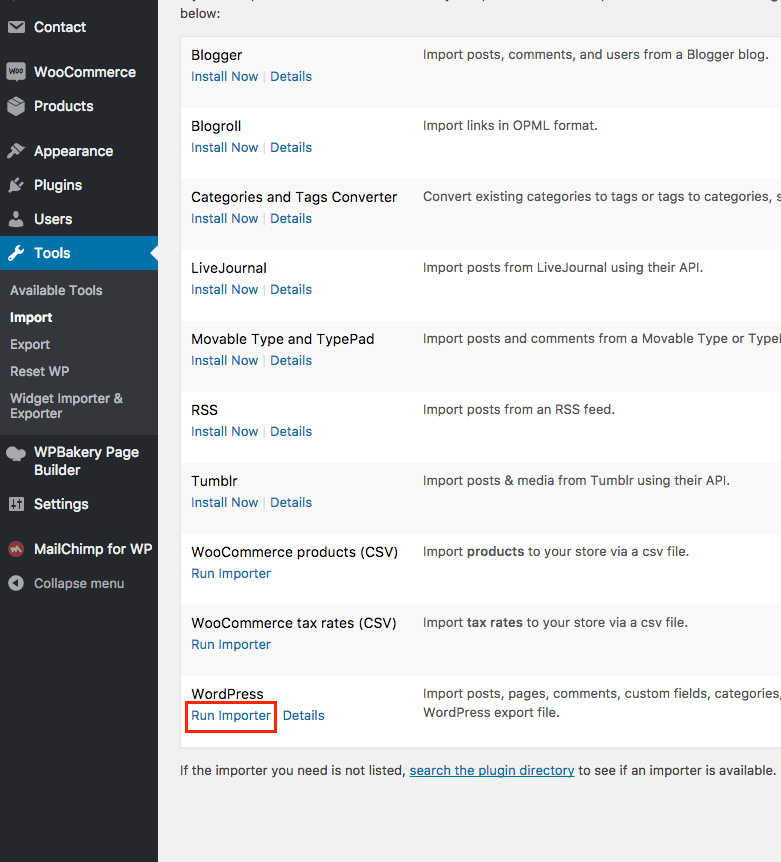
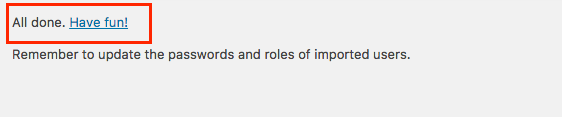
**Step 1:** From Admin Menu click Tool >> Import >> Install Now

<figure><img src="https://demo.ovathemes.com/documentation/pogon/assets/images/image_9.png" alt=""><figcaption></figcaption></figure>

<figure><img src="https://demo.ovathemes.com/documentation/pogon/assets/images/image_2.png" alt=""><figcaption></figcaption></figure>

<figure><img src="/files/YyYH9GDgYvmI0j37x7ch" alt=""><figcaption></figcaption></figure>

<figure><img src="/files/4vd05qjrFdLLcRS8K8Ar" alt=""><figcaption></figcaption></figure>

<figure><img src="https://demo.ovathemes.com/documentation/pogon/assets/images/image_4.png" alt=""><figcaption></figcaption></figure>

**Import widget data: Tool >> Widget Importer & Exporter**

<figure><img src="https://demo.ovathemes.com/documentation/pogon/assets/images/image_5.png" alt=""><figcaption></figcaption></figure>

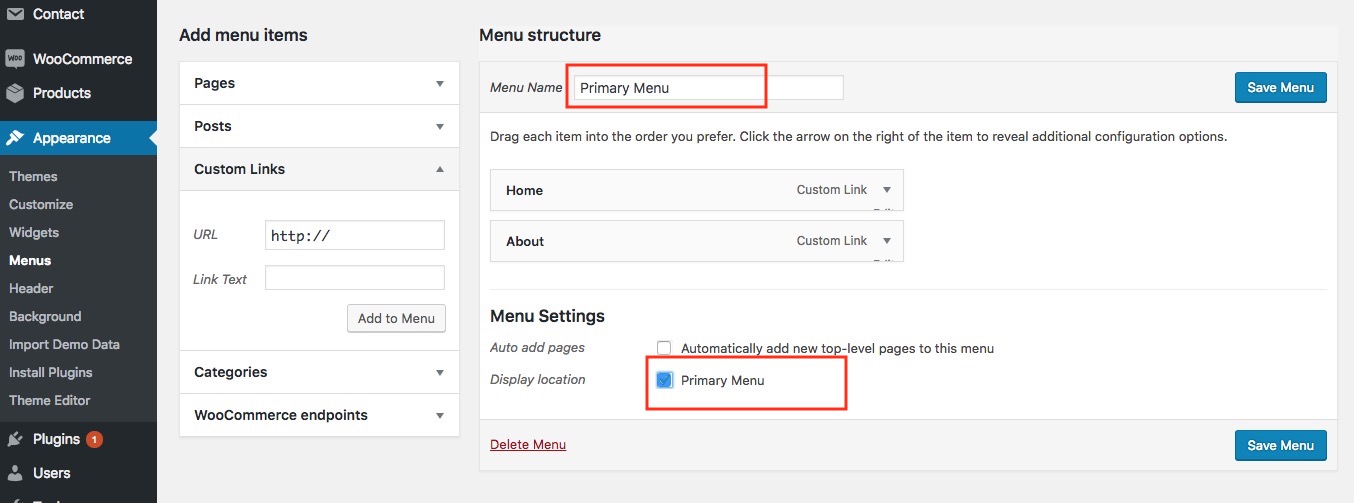
#### &#x20;**Step 2: Config Menu**

From Admin Menu click Appearance >> Menus<br>

<figure><img src="https://demo.ovathemes.com/documentation/pogon/assets/images/image_28.jpg" alt=""><figcaption></figcaption></figure>

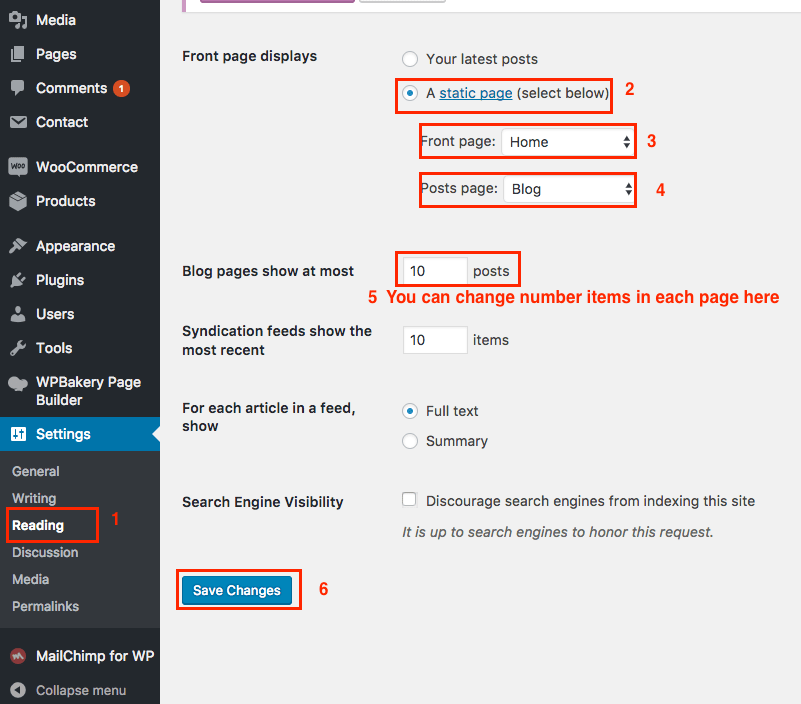
#### &#x20;**Step 3: Choose Home Page and Blog Page**

From Admin Menu click Seetings >> Reading&#x20;

<figure><img src="https://demo.ovathemes.com/documentation/pogon/assets/images/image_6.png" alt=""><figcaption></figcaption></figure>

#### **Step 4:** Import Cube Portfolio Gallery: From Admin Panel click CubePortfolio

<figure><img src="https://demo.ovathemes.com/documentation/pogon/assets/images/image_29.jpg" alt=""><figcaption></figcaption></figure>

<figure><img src="https://demo.ovathemes.com/documentation/pogon/assets/images/image_15.jpg" alt=""><figcaption></figcaption></figure>

#### **Step 5:** Go to frontend to enjoy your results !

&#x20;

### &#x20;