> For the complete documentation index, see [llms.txt](https://ova-themes.gitbook.io/aovis/llms.txt). Markdown versions of documentation pages are available by appending `.md` to page URLs; this page is available as [Markdown](https://ova-themes.gitbook.io/aovis/scan-qr-code/application.md).

# Application

## Step 1: Config in Movie Settings <a href="#step-1-create-an-user-in-site" id="step-1-create-an-user-in-site"></a>

* You have to setup this before the customer booking an movie.
* Go to Movies >> Settings >> General tab >> "Scan Qrcode via" opiton choose "Application"

<figure><img src="https://2378307249-files.gitbook.io/~/files/v0/b/gitbook-x-prod.appspot.com/o/spaces%2F0hrVNrJA5xnVtB6FlF7I%2Fuploads%2FO1cvVrwDo3r08k52lzgm%2FScreenshot%202024-11-04%20at%2015.49.55.png?alt=media&amp;token=ebd69965-fb2c-4140-996d-071a47a429ab" alt=""><figcaption></figcaption></figure>

## Step 2: Download Application <a href="#step-1-create-an-user-in-site" id="step-1-create-an-user-in-site"></a>

This is application for mobile to scan Qr Code in Ticket. After Scan Ticket, The status of ticket will updated to checked and the customer can't use it again.

**Mobile Android OS**: We supports .APK file to install application for mobile you can download it in Package theme or link <https://ovatheme.com/documentation/aovis/app/app-release.apk> . We also support code to build application, so you can customize app to fit your purpose.

**Mobile IOS OS:** We supports code to build application, so you can build application then release it in Apple store.

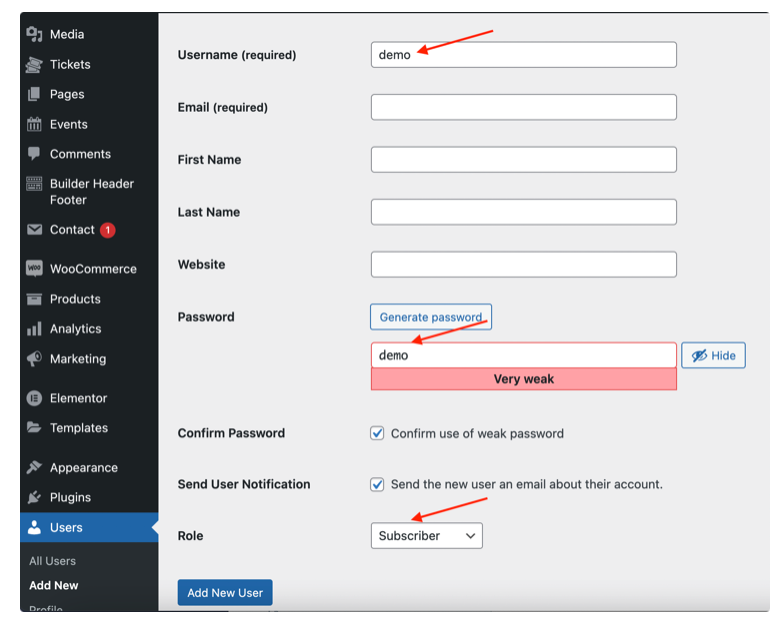
## Step 3: Create an user in site <a href="#step-1-create-an-user-in-site" id="step-1-create-an-user-in-site"></a>

Go to Users >> Add New

Example:&#x20;

**Username**: demo&#x20;

**Password**: demo

<figure><img src="https://2378307249-files.gitbook.io/~/files/v0/b/gitbook-x-prod.appspot.com/o/spaces%2F0hrVNrJA5xnVtB6FlF7I%2Fuploads%2FLzhRCZZt4KinbHhr6ztB%2F1.png?alt=media&amp;token=4873c826-fdcd-4199-9687-22a8622d54a9" alt=""><figcaption></figcaption></figure>

## Step 4: Assign username to per Movie <a href="#step-2-assign-username-to-per-movie" id="step-2-assign-username-to-per-movie"></a>

Go to Movies >> Choose a movie to edit >> Insert Username to "Username of staff" setting

<figure><img src="https://2378307249-files.gitbook.io/~/files/v0/b/gitbook-x-prod.appspot.com/o/spaces%2F0hrVNrJA5xnVtB6FlF7I%2Fuploads%2FXVuEL2Zme34Zt8ULk2zR%2F2.png?alt=media&amp;token=fb2e2190-0a5f-4400-bce2-0cb9da287ea2" alt=""><figcaption></figcaption></figure>

## Step 5: Login App and Use App <a href="#step-3-login-app" id="step-3-login-app"></a>

Insert "Site address (URL) ": Go to Settings >> General >> Use "WordPress Address (URL)" setting for login.Username/Password: You created to step 1

<div><figure><img src="https://2378307249-files.gitbook.io/~/files/v0/b/gitbook-x-prod.appspot.com/o/spaces%2F0hrVNrJA5xnVtB6FlF7I%2Fuploads%2FjRLCQsZ95cZsBD6Tt53C%2F3.png?alt=media&amp;token=8b6952f9-3de6-4751-8a80-4a41c3a66faf" alt="" width="282"><figcaption></figcaption></figure> <figure><img src="https://2378307249-files.gitbook.io/~/files/v0/b/gitbook-x-prod.appspot.com/o/spaces%2F0hrVNrJA5xnVtB6FlF7I%2Fuploads%2Fb6vdgRthphgagwDieU9m%2F4.png?alt=media&amp;token=d3024185-f47c-4502-b246-49f8c8639276" alt="" width="281"><figcaption></figcaption></figure></div>

For First Login: Please logout then login again

<figure><img src="https://2378307249-files.gitbook.io/~/files/v0/b/gitbook-x-prod.appspot.com/o/spaces%2F0hrVNrJA5xnVtB6FlF7I%2Fuploads%2FJtsuMtKq1EAYHgJCMNeP%2F5.png?alt=media&amp;token=9e44b003-4f5c-4d54-ac05-150c30eba99e" alt="" width="276"><figcaption></figcaption></figure>

Then login again, you will see the all Movies that assign to username (Ex: demo).

<figure><img src="https://2378307249-files.gitbook.io/~/files/v0/b/gitbook-x-prod.appspot.com/o/spaces%2F0hrVNrJA5xnVtB6FlF7I%2Fuploads%2FjCfHxzBdY81dEVSrJofL%2F6.png?alt=media&amp;token=91c94c87-5122-4cab-a463-8ae06b7c85cc" alt="" width="280"><figcaption></figcaption></figure>

Choose a movie to scan QR Code

<figure><img src="https://2378307249-files.gitbook.io/~/files/v0/b/gitbook-x-prod.appspot.com/o/spaces%2F0hrVNrJA5xnVtB6FlF7I%2Fuploads%2FZeyxwyK83gJ2SO0Xbz6Z%2F7.png?alt=media&amp;token=ab7ae84a-35fa-4fe8-bfef-44d907e7e3be" alt="" width="280"><figcaption></figcaption></figure>

Scan Qr Code: Valid Ticket

<figure><img src="https://2378307249-files.gitbook.io/~/files/v0/b/gitbook-x-prod.appspot.com/o/spaces%2F0hrVNrJA5xnVtB6FlF7I%2Fuploads%2FOSLEdpV63e84C1dWyjhG%2F8.png?alt=media&amp;token=cb5bdc21-01c0-4ecb-a26e-c9f602003fcc" alt="" width="277"><figcaption></figcaption></figure>

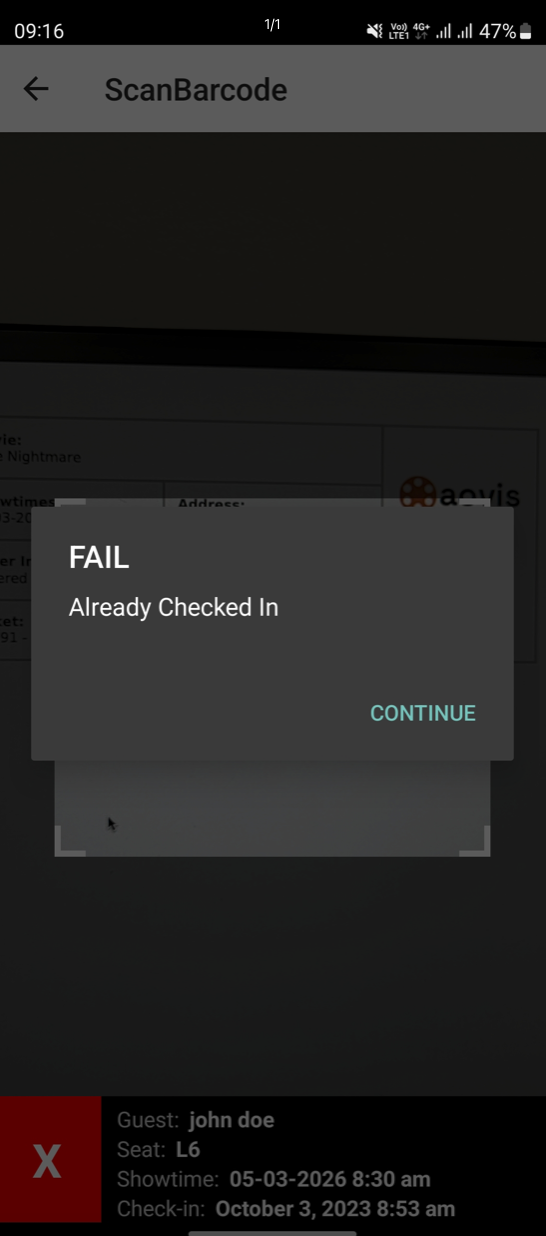
Scan Qr Code: Invalid Ticket

<figure><img src="https://2378307249-files.gitbook.io/~/files/v0/b/gitbook-x-prod.appspot.com/o/spaces%2F0hrVNrJA5xnVtB6FlF7I%2Fuploads%2FD8AQ2TFcJlU2BgwUmYOl%2F9.png?alt=media&amp;token=086b50cd-2f54-4b40-89fb-7da1b61eac13" alt="" width="273"><figcaption></figcaption></figure>