> For the complete documentation index, see [llms.txt](https://ova-themes.gitbook.io/aovis/llms.txt). Markdown versions of documentation pages are available by appending `.md` to page URLs; this page is available as [Markdown](https://ova-themes.gitbook.io/aovis/movie/bookings.md).
# Bookings
Display the all Booking Movies.
## 1: Manage Bookings
Go to **Movies >> Bookings**
**With the feature, you can:**
* Manually add a new booking. Read[ here](#id-3-create-manuall-booking) for more details
* View/edit/delete bookings
* Quickly filter bookings be dates and booking id
* Check booking Statistics. Read [here](#id-3-check-sales) for more detail
## 2: Edit a Booking
You can change customer information and Seat
* If you change customer name, you only need to click "update" button normally.
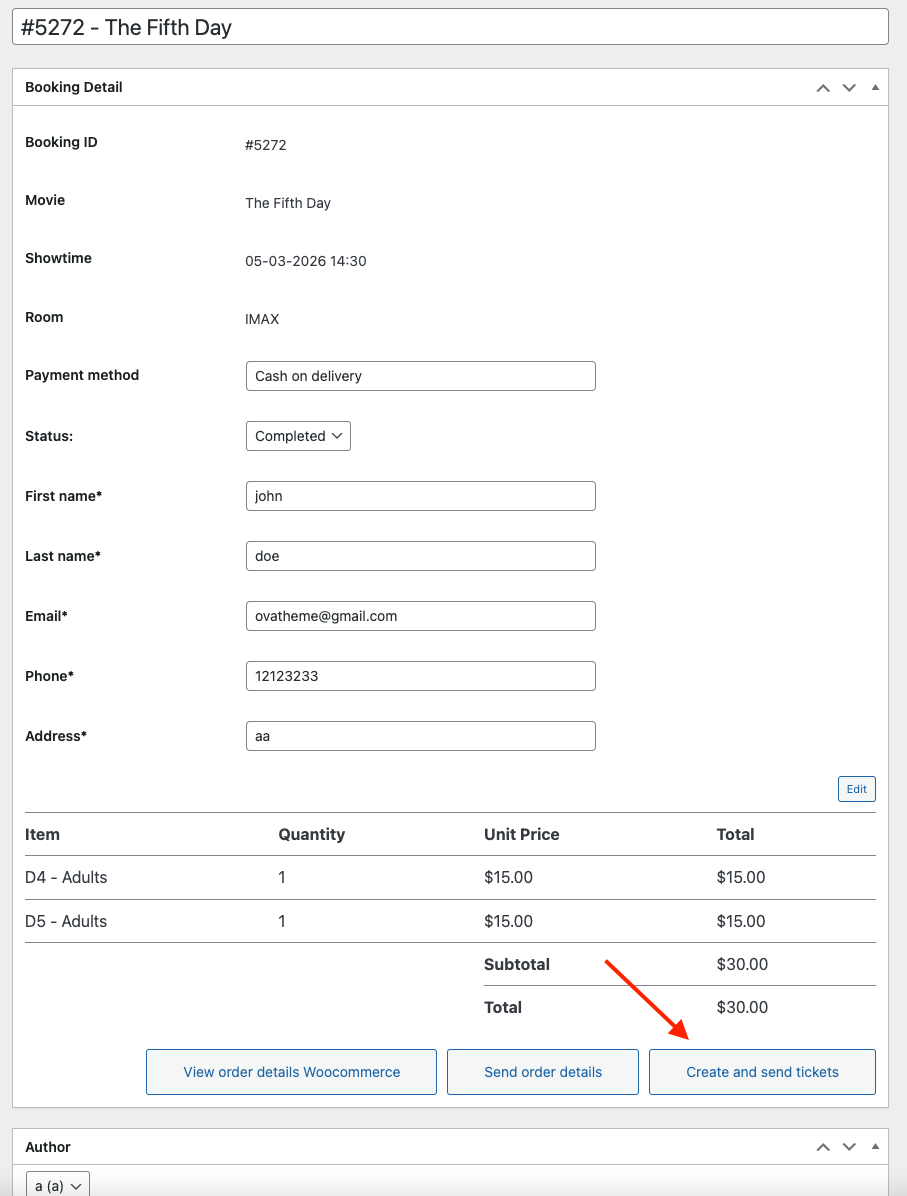
* If you change Seat: After updating booking, you have to click "Create and send tickets" button to create new tickets.
Click Edit seat
Change D6 -> D5
Click "Create and Send Tickets" to make new tickets.
* **Options**:
* "**Create and Send tickets**": The system will create tickets and send to email of customers.
* "**Send order details**": he system will send the order link to the customer’s email, allowing them to pay for the order online and receive PDF tickets via email.
* "**View order details in WooCommerce**": The system will redirect to the order page in WooCommerce.
## 3: Create Manually Booking
### Step 1: **Go to** Movies >> Bookings >> Add New
### Step 2: Configure Settings
* Choose Movie. Read [here](/aovis/movie/all-movies.md#id-2-create-movie) to know how to add a new movie
* Choose Showtime. Read [here](/aovis/movie/rooms.md#id-1-create-a-new-room) to know how to add a showtime
* Choose Room. Read [here](/aovis/movie/all-movies.md#id-2-create-movie) to know how to add a room
* Choose Seats
* You can search Seat Code in form
* Fill in Customer Information: First name, last name, email, phone number, address
* Choose Person Type and Services.
* Click "Add Booking" button
### Step 3: Choose one of Options
After Adding Booking button, the system displays some options:
**a) "See Details" Option**
* The system doesn't create tickets.
* The system will redirect to the booking edit page
**b) "Send Order Details" Option**
* The system doesn't create tickets.
* The system will create a pending order in WooCommerce and send the order link to the customer. The customer can then make an online payment and receive their tickets.
**c) "Send Tickets" Option**
* The system create tickets and send to customers.
**d) "Continue Creating" Option**
* The system doesn't create tickets.
* The system will redirect to the manual booking creation page
## 4: Check Booking Statistics
### Step 1: Access booking statistics panel
Go to **Movies >> Bookings >> Statistics**
### Step 2: View booking data and trends
View subtotal, total, discounts, ticket fees, and taxes by movie, booking status, date range, city, venue, or room